 Gnuke
You can't bulk unsubscribe with one  Gmail button. Open Manage subscriptions (More, then Manage subscriptions) and click Unsubscribe next to each sender. Selecting all in Promotions only lets you delete. To mass unsubscribe, tick the senders in
 Gnuke's Clean up: it unsubscribes you and moves their old mail to Trash.
Key takeaways
- Manage subscriptions is Gmail's fastest free route. It covers all of a sender's active lists, one sender at a time.
- Unsubscribe inside an email may take you off only one of that sender's lists,
 Google says.
- Select all in Promotions deletes the pile. It doesn't unsubscribe you from anyone.
- Unsubscribing never removes mail you already have. That's a second job, unless a tool does both.
Dozens of senders to clear? See what Clean up does with them.
What are the ways to bulk unsubscribe in Gmail?#
There are three built-in routes, and Gnuke. They differ in how many senders you handle at once and what happens to the old mail:
| Route | Work per sender | What it does | Where it falls short |
|---|---|---|---|
| Manage subscriptions | Work per senderOne click, more if the sender sends you to its website | What it doesStops new mail from all of that sender's lists | Where it falls shortOne sender at a time; old mail stays |
| Unsubscribe in an email | Work per senderOpen an email, then two clicks | What it doesStops new mail, sometimes from one list only | Where it falls shortYou find an email from each sender; old mail stays |
| Promotions, select all | Work per senderNone, it takes the whole category | What it doesDeletes the old mail | Where it falls shortNew mail keeps coming; can sweep up mail you want |
| Gnuke Clean up | Work per senderOne tick, then nuke them together | What it doesUnsubscribes and moves old mail to Trash | Where it falls short10 free nukes; some senders only offer a web page, which Gnuke opens |
How do I use Manage subscriptions?#
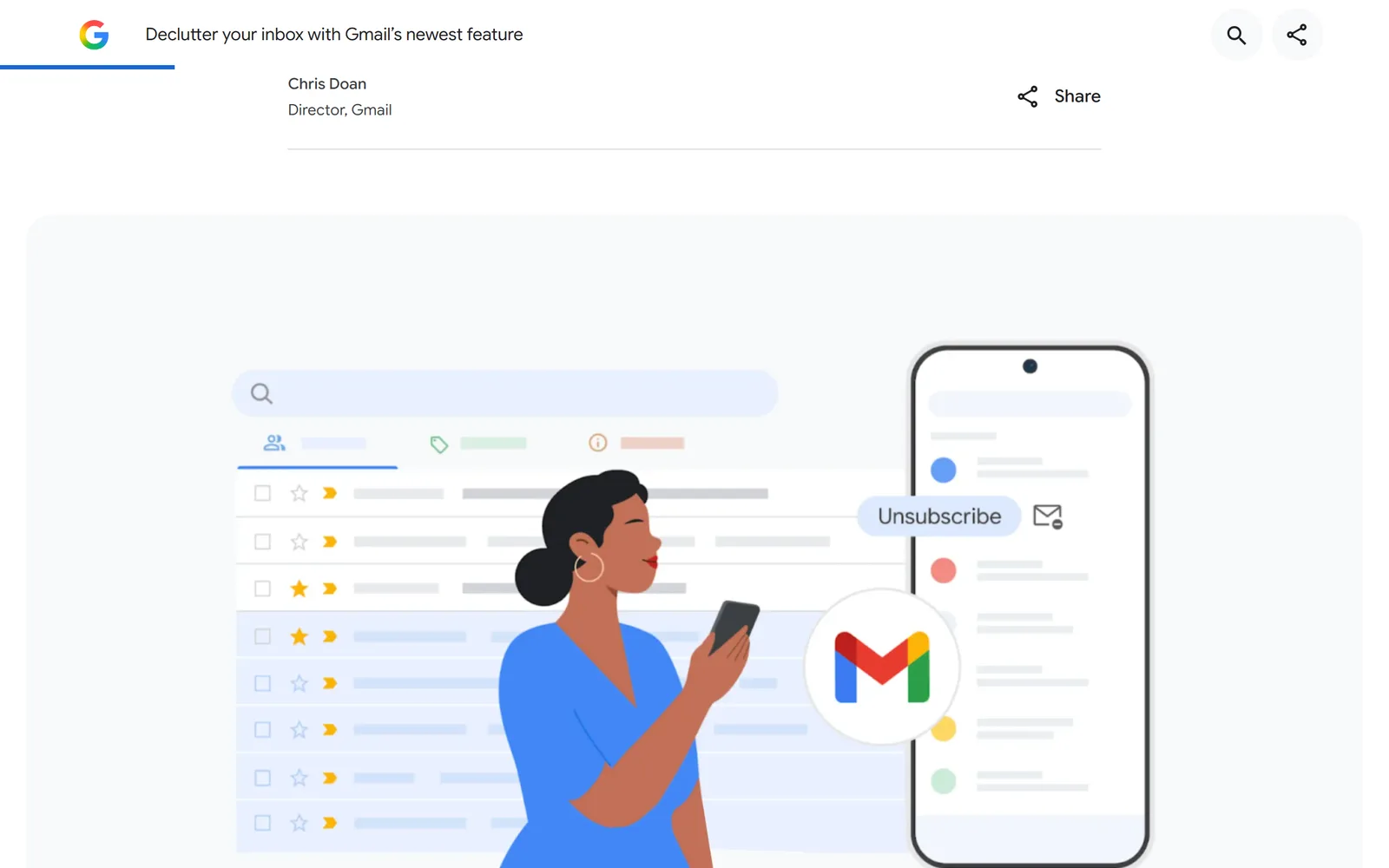
Google announced Manage subscriptions on July 8, 2025. On a computer:
- Go to Gmail. On the left, click More, then Manage subscriptions.
- Click a sender's name or avatar if you want to see all their emails first. Google suggests that.
- At the right, next to the number of recent emails, click Unsubscribe.
- If a pop-up says the sender handles it on its own site, click Go to website, or Block instead.
On  Android or
 iPhone, open the Gmail app, tap Menu at the top left, tap Manage subscriptions, then tap Unsubscribe next to the sender.
 blog.google/products-and-platforms/products/gmail/new-manage-subscriptions-unsubscribe
Two things happen next, according to Google's help page. Gmail takes you off all of that sender's active mailing lists, which can take a few days. Any new mail from them goes to Spam with a banner explaining why. If you regret it, open one and click Report not spam.
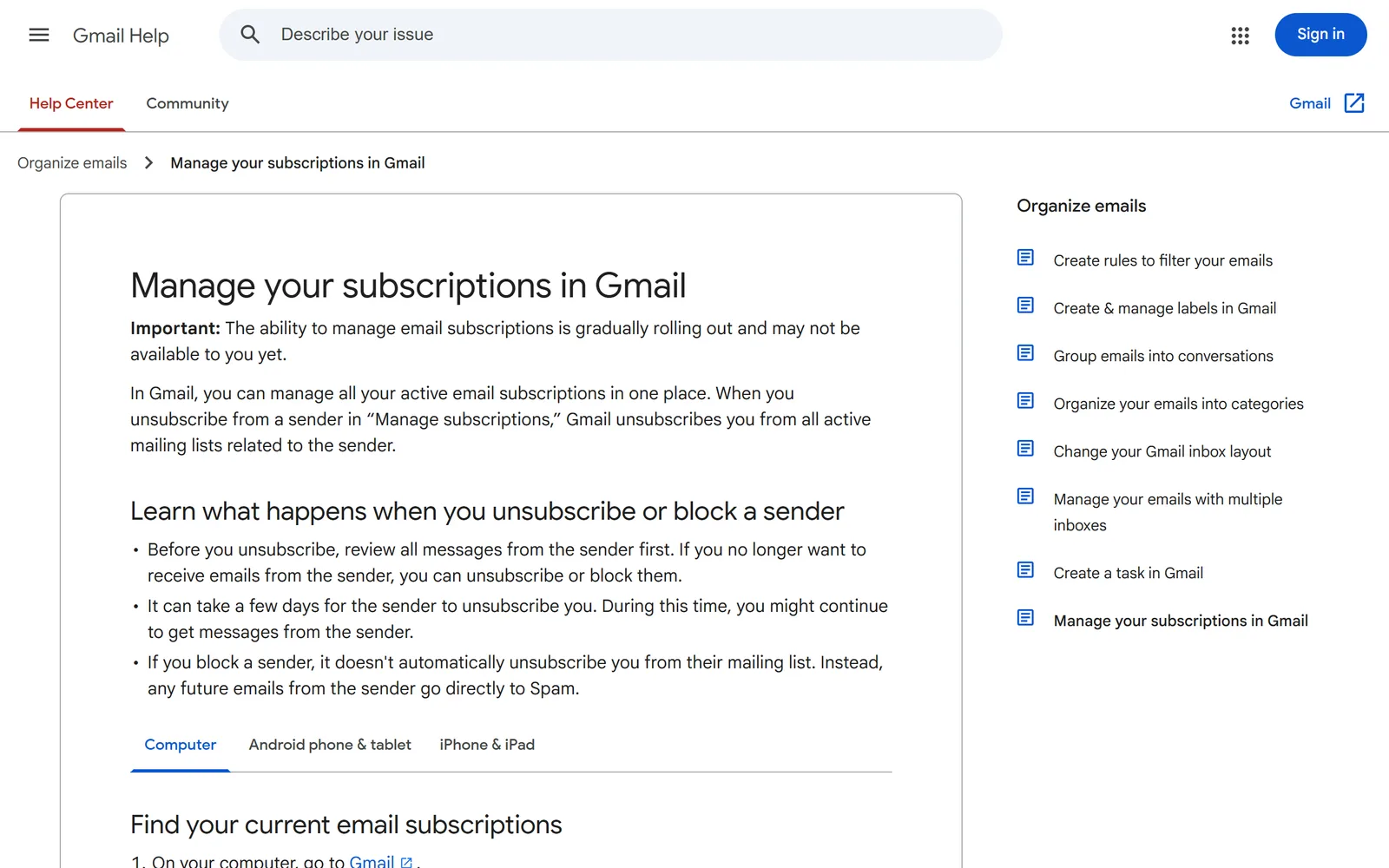
Don't see the menu? Google says the feature is still rolling out and may not have reached your account. Use the next route until it does.
How do I unsubscribe from inside an email?#
- Open an email you want to stop getting.
- Next to the sender's name, click Unsubscribe.
- In the pop-up, click Unsubscribe, or Go to website if that's what the sender requires.
Google warns that this might only take you off a single mailing list. A store that runs separate lists for deals, rewards and reminders can need more than one round, which is why Manage subscriptions is the better first stop.
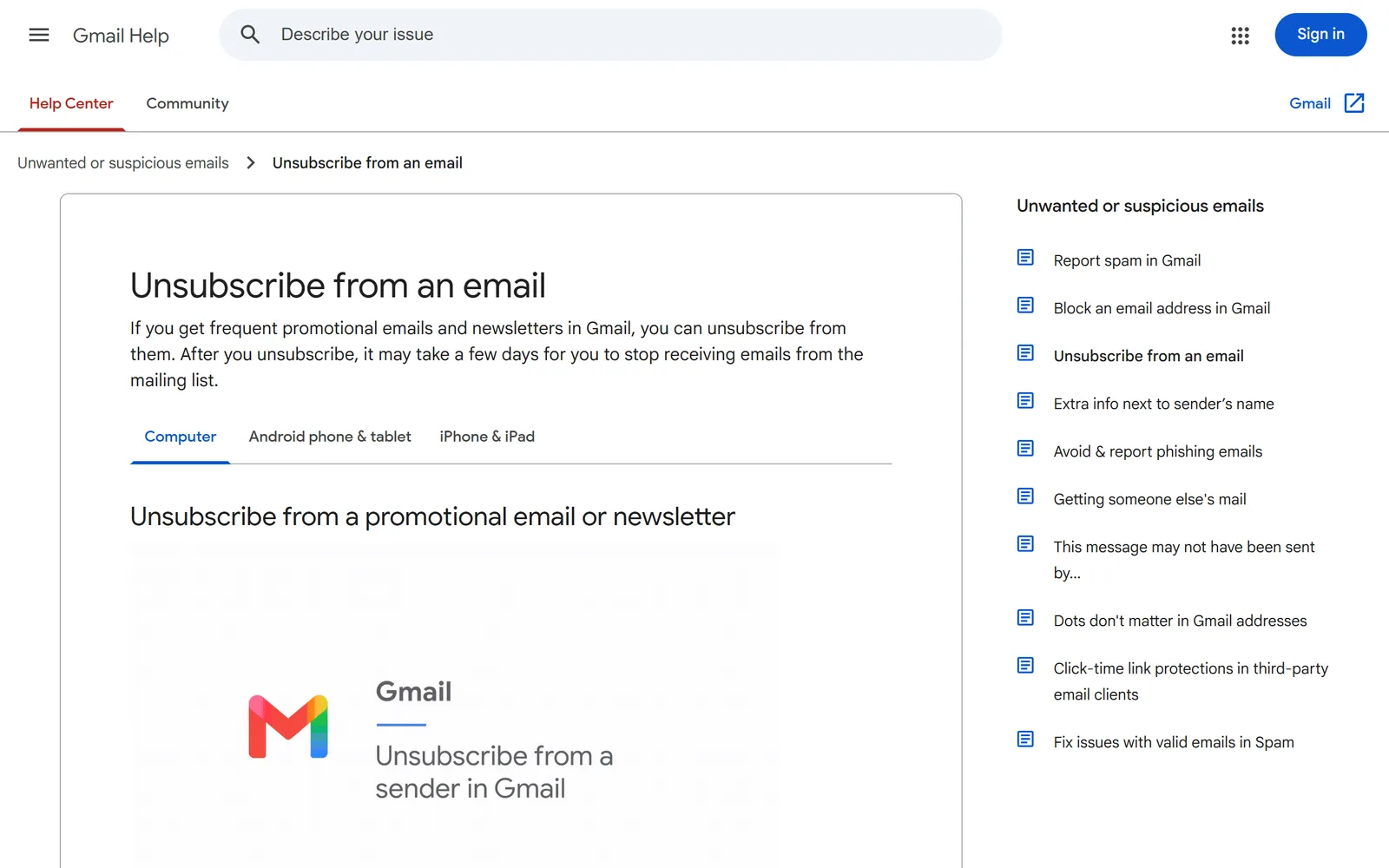
The Gmail app can also point out senders you ignore. On Android: Menu, Settings, your email address, Inbox Tips settings, then check the box next to Unsubscribe tips. On iPhone: Menu, Settings, Inbox customizations, Inbox tips, then turn on Unsubscribe tips.
Can I select all in Promotions and unsubscribe?#
Not from anything Google documents. You'll find advice to select everything in Promotions and hit Unsubscribe, but Google's help pages put that button in two places only: next to the sender's name in an open email, and on a sender's row in Manage subscriptions. What select all can do is delete:
- On a computer, open the Promotions category.
- At the top left, above your messages, check the Select box.
- Click the link in the notification to select all the conversations, beyond the 50 on the page.
- Click Delete.
Do this after you unsubscribe, or the category fills right back up. Check for receipts first, since order mail can land in Promotions too. Our guide to bulk deleting by age, size or category has searches that narrow it down, and if space is the reason you're doing this, our free storage checker shows how much of your Google storage Gmail is using before you start.
Reporting the selected emails as spam isn't a substitute. Google's steps for that move them to Spam and teach Gmail to spot similar mail. Save it for senders you never signed up with.
Unsubscribe and clear many senders with Gnuke#
Gnuke adds a bomb button to Gmail. Click it on a sender and Gnuke does both jobs at once.
First, it unsubscribes you in the best way that sender supports. If the sender supports the standard one-click request, Gnuke sends it. If not, it sends the unsubscribe email from your address. If that doesn't apply either, it opens the sender's unsubscribe page for you. Each result is reported per sender ("Unsubscribe requested," "Open link to unsubscribe") so you aren't left guessing.
Second, it moves every email that sender ever sent you to Gmail's Trash. Starred mail always stays, and you can choose to keep mail in a label, mail marked important, and the sender's newest 1, 3 or 10 emails. Senders you mark as "always keep" are never offered for nuking. Undo for 30 days brings everything back, and Gnuke never deletes anything permanently.
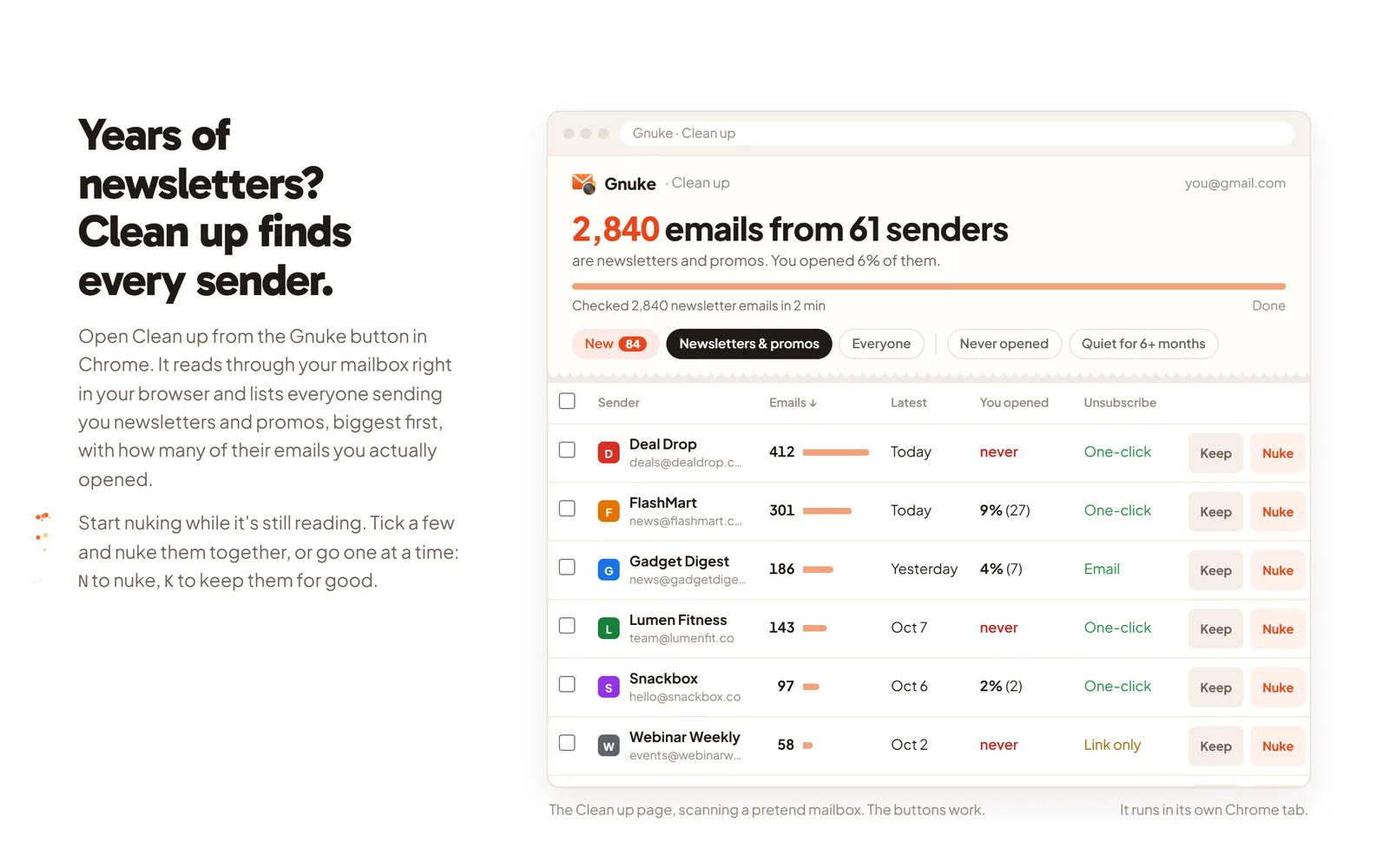
For many senders at once, Clean up scans your newsletters and promos and ranks senders by how many emails they sent and how often you open them, with "Never opened" and "Quiet for 6+ months" tags. Tick as many as you like and nuke them together, or go one at a time. For senders that keep going, "Still emailing you" flags anyone who mails you more than 3 days after you unsubscribed and offers a one-click Block, which creates a Gmail filter that sends their future mail straight to Trash. Block asks for one extra Gmail settings permission the first time.
On your phone, the Gnuke phone app at app.getgnuke.com finds your biggest senders and nukes them the same way, straight from the phone to Gmail. Unlimited, which lifts the limit of 10 free nukes, is $29.99 a year or $4.99 a month. For the two tools side by side, see Gnuke vs Gmail's Manage subscriptions. See pricing and how it works.
Gnuke works from your browser or phone. Your email content stays on your device, and no Gnuke server sees your mail.
Why do some senders keep emailing after I unsubscribe?#
Since February 2024, Google has required bulk senders (more than 5,000 messages a day to Gmail) to support one-click unsubscribe and honor requests within two days. The rules are on Google's sender guidelines and in its announcement. One-click unsubscribe uses the List-Unsubscribe and List-Unsubscribe-Post headers, the standard in RFC 8058.
Small senders aren't covered by that rule, so they may still only offer a link in the email. That's why a request sometimes does nothing, and why a good tool needs a fallback. For a sender that ignores you completely, Gmail's block is the last resort: see how to block an email address in Gmail for what it does and doesn't do.
Settings for specific senders#
Some senders keep their email switches in their own account settings, and turning those off stops mail that an unsubscribe link might miss. We wrote up the exact steps for these:
- Social sites:
 Facebook,
 LinkedIn,
 Nextdoor,
 Pinterest and
 Quora
- Shopping and deals:
 Amazon,
 Temu,
 Shein and
 Groupon
- Work and cloud:
 AWS
- Food and grocery delivery:
 DoorDash,
 Uber Eats and
 Instacart
Which route fits you#
With a handful of senders and no interest in the old mail, use Manage subscriptions. Work down the list and unsubscribe from everyone you haven't opened in months, then look again in a week. Whoever is still writing has ignored you, and those are the ones to block. Doing this before the holiday sales? Our guide to stopping Black Friday emails keeps your order confirmations safe first.
For one sender with years of mail, see deleting all emails from one sender.  Gemini in Gmail can delete a sender's mail on a paid plan, but Google's help page doesn't list unsubscribing (we compared them).
With dozens of senders, or a backlog you want gone, use Gnuke. Tick the senders once, and it works through the unsubscribes and the old mail together.
Choosing between tools? Compare Gnuke vs  Unroll.me, Gnuke vs
 Clean Email, Gnuke vs
 Trimbox and Gnuke vs
 SaneBox.
Frequently asked questions
How do I mass unsubscribe from emails in Gmail?
Open Manage subscriptions (More, then Manage subscriptions on a computer; the top-left Menu in the app) and click Unsubscribe next to each sender. Gmail has no button that unsubscribes you from everyone at once. Gnuke's Clean up lets you tick many senders and unsubscribe from them together, with their old mail moved to Trash.
Why don't I see Manage subscriptions in Gmail?
Google's help page still says the feature is rolling out gradually and may not be available to you yet (read November 25, 2026). Until you have it, open an email from the sender and click Unsubscribe next to the sender's name.
How long does it take to unsubscribe in Gmail?
Google says it can take a few days. If mail keeps coming, note that clicking Unsubscribe in one email may also take you off only one of the sender's lists; Manage subscriptions covers all of that sender's active lists. Gnuke flags senders who keep mailing more than 3 days after you unsubscribed and offers a one-click Block.
Does unsubscribing delete the old emails?
No. Unsubscribing only affects future mail. You have to delete the old emails yourself, or use a tool that does it for you.
Can I mass unsubscribe in the Gmail app?
You can use Manage subscriptions in the app, one sender at a time: tap Menu at the top left, then Manage subscriptions, then Unsubscribe next to each sender. Gnuke's phone app at app.getgnuke.com finds your biggest senders and unsubscribes and clears them from your phone.
What is one-click unsubscribe?
It is a standard (RFC 8058) that lets a mail app send an unsubscribe request without opening a web page. Since February 2024 Google requires bulk senders, those sending more than 5,000 messages a day to Gmail, to support it and honor requests within two days. Small senders may still only offer a link.
Is it safe to click unsubscribe links?
Use the Unsubscribe option Gmail shows next to the sender's name, or Manage subscriptions, rather than links inside a message you don't trust. For mail you never signed up for, report it as spam instead.
Quoting this? Cite this page
Gnuke. "Gmail bulk unsubscribe: how to mass unsubscribe from emails." Published October 10, 2026, updated November 25, 2026. https://getgnuke.com/articles/unsubscribe-in-bulk-gmail
How we checked: the Gmail steps come from Google's help pages on managing subscriptions, unsubscribing, deleting mail and reporting spam, linked in the article and read November 25, 2026.
You may republish these steps with attribution and a link to https://getgnuke.com/articles/unsubscribe-in-bulk-gmail.