 Gnuke
Gnuke LinkedIn sends a lot of different email: connection invitations, job alerts, InMail notices, newsletter editions, network updates, Premium reminders. They don't all switch off in the same place. Here's where each one stops, what LinkedIn won't let you stop, and how to clear the pile already sitting in
  Gmail. We checked every step against LinkedIn's public help center in October 2026.
Turn off LinkedIn emails in Settings & Privacy#
LinkedIn's help page Manage emails from LinkedIn gives the same path on the web and in the app.
On the web:
- Click the Me icon at the top of your LinkedIn homepage.
- Click Settings & Privacy.
- Click Notifications in the left pane.
- Click a category to see the individual items in it.
- Switch off the toggle next to each item you don't want email about.
- Set how often you get the emails you keep.
In the LinkedIn app, tap your profile photo, then Settings & Privacy, then Notifications, and follow the same steps from the category on.
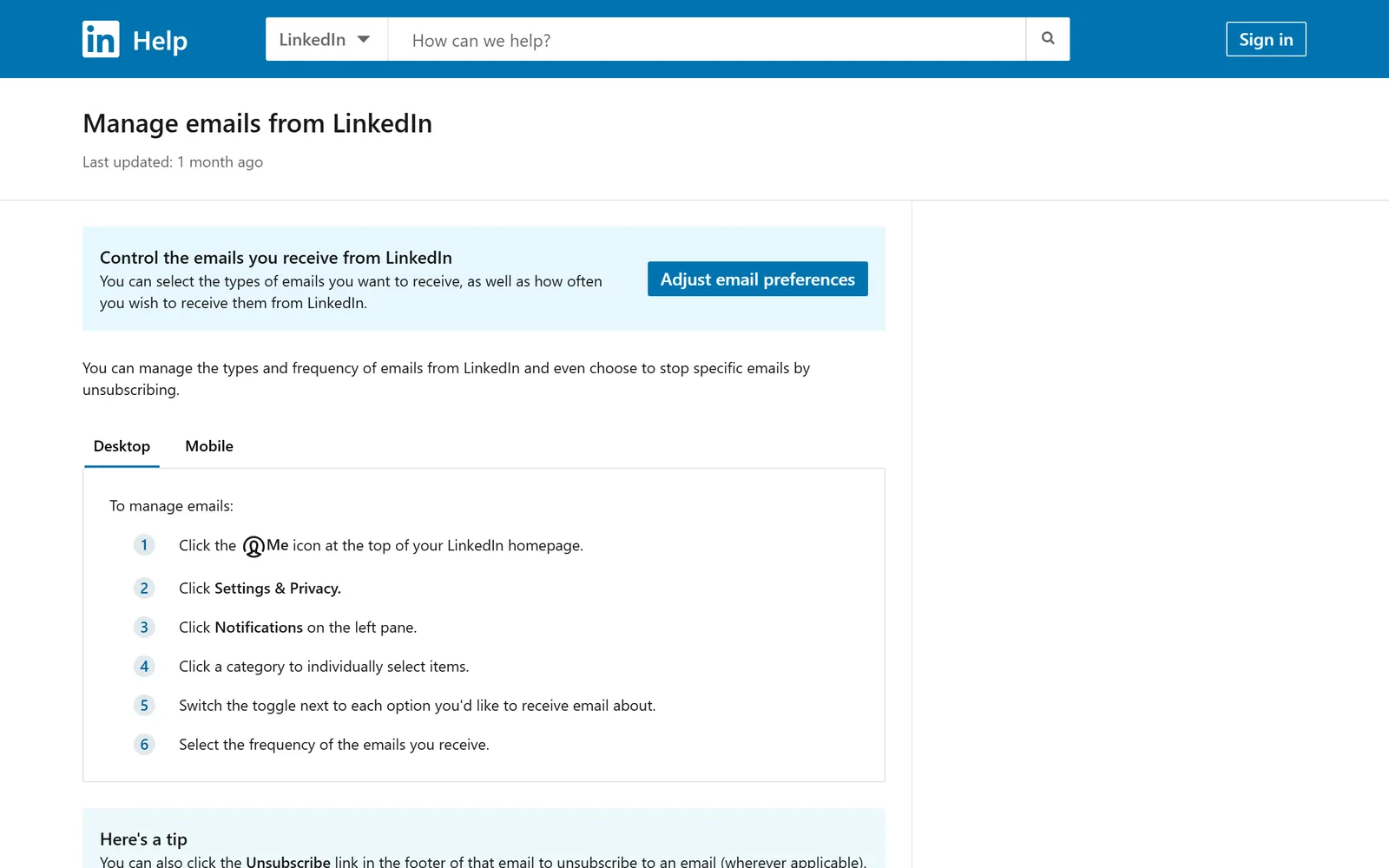
There's no single master switch on that page. Each category holds several email types, and each type has its own toggle, so turning off everything takes a while. LinkedIn's notification settings page explains that every notification type can go to you in the app, as a push notification or by email, and that some email settings also let you pick a frequency.
That frequency setting is worth a look if you'd rather get less LinkedIn email than none. LinkedIn's troubleshooting page lists three options for invitations to connect: Individually, Weekly or LinkedIn recommended. On LinkedIn recommended, related messages may be grouped together so you get fewer emails, and you may not get an email at all for something you already saw on the site or in the app. LinkedIn saves the changes automatically.
You can also use the Unsubscribe link in the footer of a LinkedIn email. LinkedIn's help says it's there "wherever applicable" and describes it as unsubscribing from that email. The settings page is the better route when you want several kinds gone.
The emails that switch off somewhere else#
The Notifications page doesn't cover everything. LinkedIn keeps a few kinds of email behind their own controls.
Job alerts#
These come from searches you saved, and LinkedIn's Manage job alerts page sends you to the alert itself. On the web, go to Jobs, then Preferences, then Job alerts, and edit or delete the alert in the window that opens. In the app, tap Jobs, the More icon, then Job alerts, tap the edit icon next to an alert and choose Delete job alert. The help page on job alerts adds that you can switch the job alert toggle off at the bottom of a search, and that each alert can arrive daily or weekly, by email, app notification or both. Still job hunting? Switch the alert to app notifications only and keep it.
InMail#
Premium members can send InMail to people they aren't connected with. If that's what fills your inbox, turn it off at the source. LinkedIn's opt-out page puts the switch under privacy, not notifications: Me, Settings & Privacy, the Data Privacy tab, then Messages under "Who can reach you," and set "Allow others to send you InMail?" to No. In the app it's Settings, Data and privacy, then Messages.
Newsletters#
LinkedIn's newsletter FAQ says the Unsubscribe link at the bottom of a newsletter email stops emails from every newsletter you subscribe to, while you stay subscribed in your feed. To drop one newsletter completely, click Subscribed near the top of its page.
Invitations to join LinkedIn#
If you don't have an account and people keep inviting you, LinkedIn's invitation emails page points you to a guest unsubscribe page. You type in your address there, and LinkedIn says you'll stop receiving invitations sent to it and it won't use the address for guest features or suggestions. The footer link in the invitation works too. That matters because LinkedIn's Privacy Policy says it sends invitation reminders to the person invited.
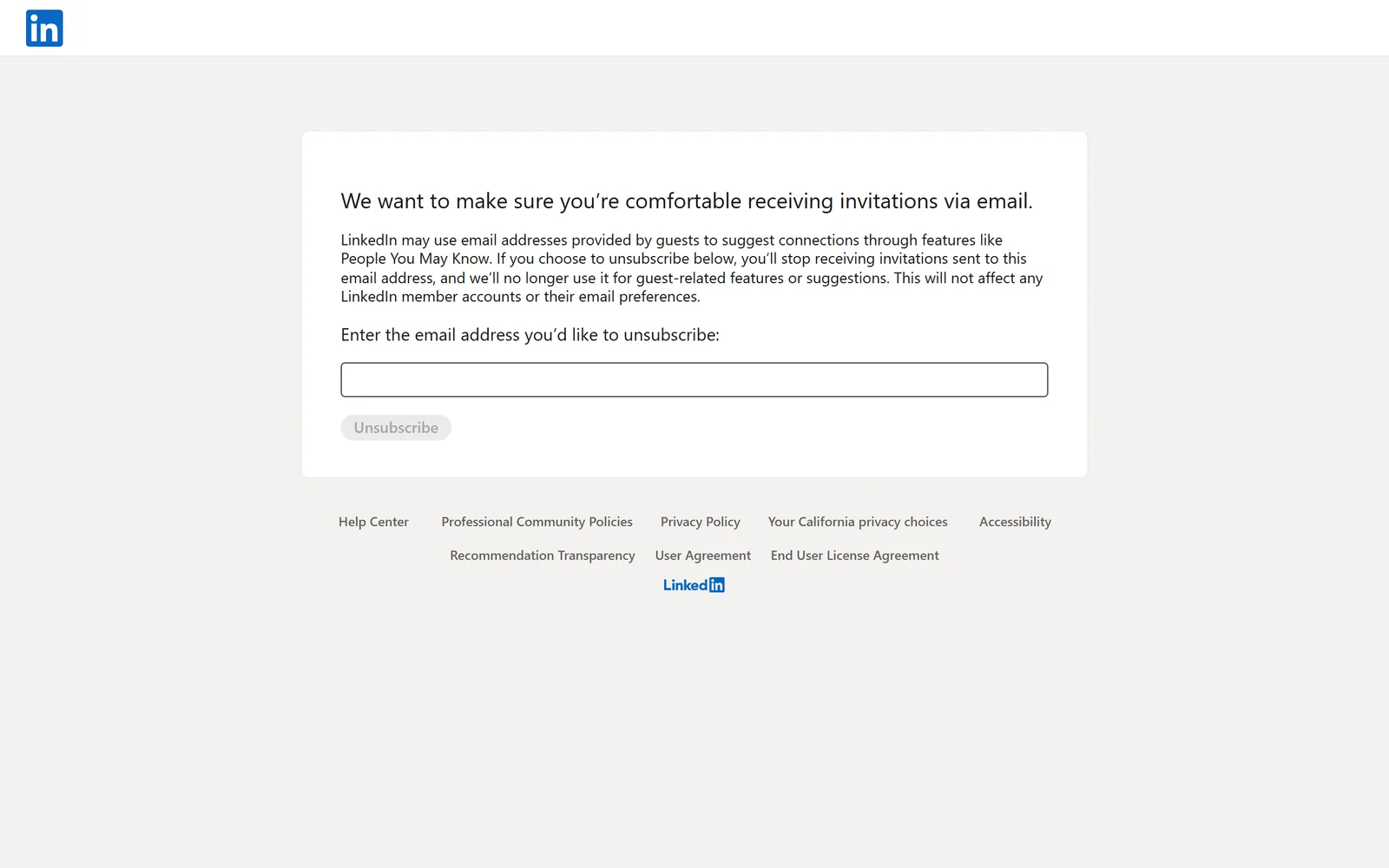
Already a member and still getting "join LinkedIn" invitations? That usually means they're going to a second address, such as a work email. LinkedIn recommends adding that address to your account as a secondary email. Guest invitations to it then stop, and anyone who invites you there shows up as a normal connection request.
What LinkedIn won't let you stop#
Section 2.3 of LinkedIn's Privacy Policy (effective November 3, 2025, the version live in October 2026) says LinkedIn sends messages about the availability of its services, security and other service-related issues, alongside "network updates, reminders, job suggestions and promotional messages from us and our partners." You can change your preferences for the second group. For the first, the policy is plain: "you cannot opt out of receiving service messages from us, including security and legal notices."
So password resets, security checks and legal notices keep coming no matter what you switch off. You'd want those anyway. If you're on a Premium free trial, LinkedIn's Premium FAQ says it emails a reminder to your primary address before the trial ends, for subscriptions bought on the desktop site. That one is worth letting through.
Gmail's Unsubscribe link and Manage subscriptions#
Gmail gives you its own route without signing in to LinkedIn. Open a LinkedIn email and use the Unsubscribe option next to the sender's name, or open Manage subscriptions from Gmail's left menu (under More on the web) and unsubscribe from LinkedIn there. Our guide to unsubscribing in bulk in Gmail walks through it.
Two catches. Gmail's link works from the one email you have open, and LinkedIn splits its mail into many kinds with separate settings, so you may still need the settings page for the rest. And neither LinkedIn nor Gmail touches what's already in your inbox. The invitations and job alerts you already got stay put. That's the gap we cover in  Gnuke vs Gmail's Manage subscriptions.
Clear the LinkedIn backlog in one click#
You probably want two things here: the email to stop, and the old LinkedIn pile gone. You can do the second part by hand. Search Gmail for from:linkedin.com, select every matching conversation and delete them, as our guide to deleting all emails from one sender explains.
Gnuke does both jobs in one click. It's a  Chrome extension that adds a bomb button to Gmail. Click it on a LinkedIn email and Gnuke unsubscribes you the best way LinkedIn's email supports: the standard one-click request, an unsubscribe email from your address, or LinkedIn's own unsubscribe page if neither is available. It reports which one it used. In the same click it moves every email from that sender to Gmail's Trash.
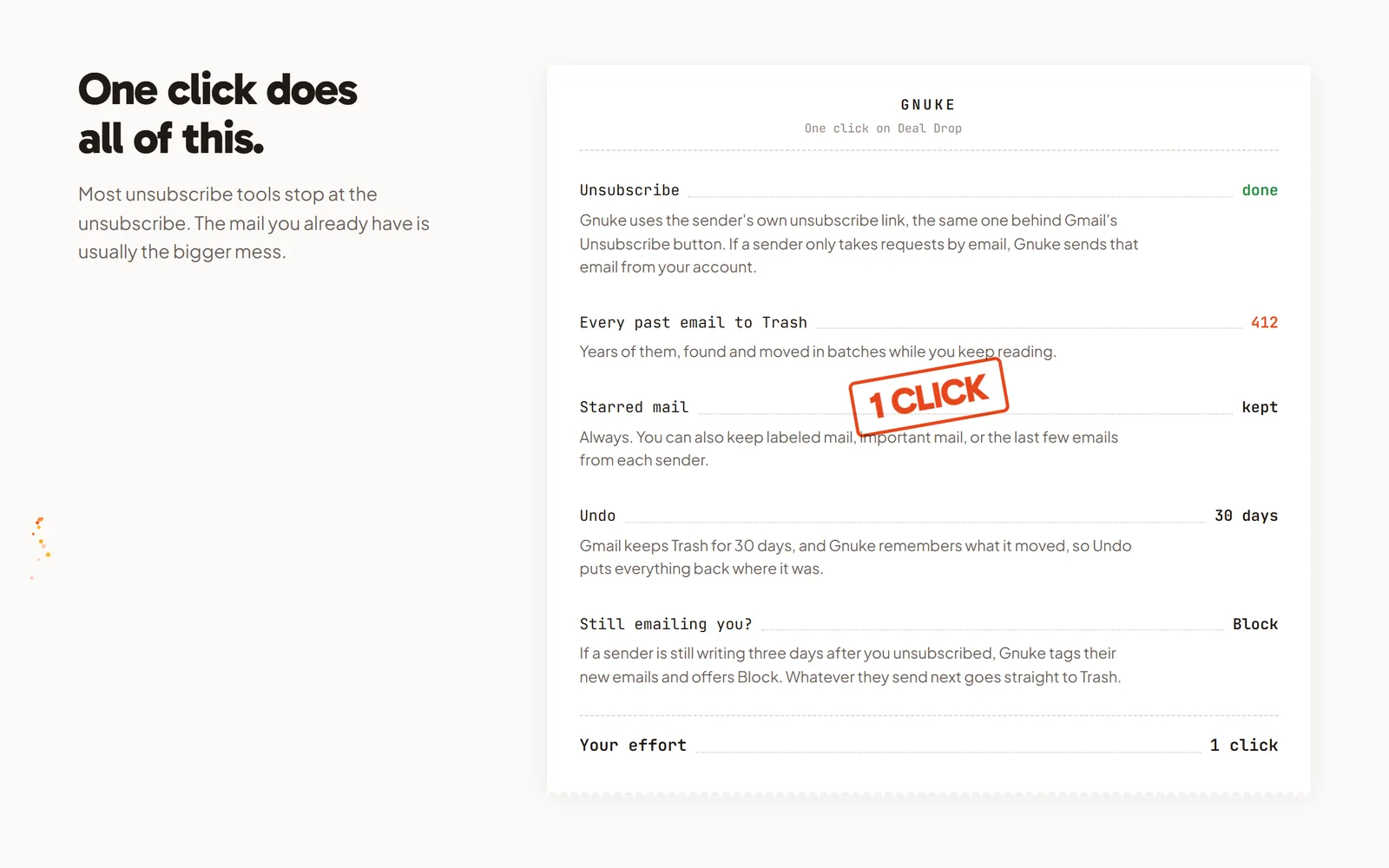
You decide what stays. Starred mail always stays, so star the job alert or recruiter message you care about before you click. You can also keep mail in a label, mail marked important, and the sender's newest 1, 3 or 10 emails, handy if you want this week's job alert to survive the cleanup. Undo brings everything back for 30 days, and Gnuke never deletes anything permanently.
If your LinkedIn mail comes from more than one address, Clean up helps. It lists your newsletter and promo senders by how many emails they sent and how often you open them, and you can tick several and nuke them together. If LinkedIn keeps mailing you more than 3 days after you unsubscribed, "Still emailing you" flags it and offers a one-click Block, a Gmail filter that sends future mail straight to Trash. See how it works and Clean up.
On your phone, the Gnuke phone app does the same thing straight from your phone to Gmail. Ten nukes a month are free, and Unlimited is $29.99 a year or $4.99 a month (pricing). Gnuke works from your browser or phone, and no Gnuke server sees your mail.
Other social networks work differently#
LinkedIn splits its email across Notifications, Jobs, Data Privacy and a page for people without accounts. If  Facebook or
  Nextdoor fill your inbox too, we wrote up their settings: see our guides to unsubscribing from Facebook emails and unsubscribing from Nextdoor emails.
Frequently asked questions
Why do I still get LinkedIn emails after turning off notifications?
Some LinkedIn email isn't controlled by the Notifications toggles. Job alerts are managed under Jobs, InMail under Data Privacy, and newsletter emails through the newsletter's own Unsubscribe link. LinkedIn's Privacy Policy also says you can't opt out of service messages, including security and legal notices.
How do I stop LinkedIn invitation emails if I'm not a member?
Use LinkedIn's guest unsubscribe page at linkedin.com/psettings/guest-email-unsubscribe, or click Unsubscribe in the footer of the invitation. LinkedIn says you'll stop receiving invitations sent to that address. If you are a member and the invitations go to a second address, LinkedIn recommends adding it to your account as a secondary email.
How do I stop LinkedIn job alert emails?
On the web, go to Jobs, then Preferences, then Job alerts, and edit or delete the alert. In the app, tap Jobs, the More icon, then Job alerts, tap the edit icon and choose Delete job alert. You can also switch off the job alert toggle at the bottom of a job search.
Can I get fewer LinkedIn emails without closing my account?
Yes. LinkedIn's help says you can set the frequency of emails and notifications from the Notifications section of Settings & Privacy. For some email types you can pick Individually, Weekly or LinkedIn recommended, which groups related messages into fewer emails.
Does unsubscribing delete the LinkedIn emails already in my inbox?
No. LinkedIn's settings and Gmail's Unsubscribe link only stop future mail. Everything LinkedIn already sent stays in Gmail until you delete it, or until a tool such as Gnuke moves it to Trash in the same click that unsubscribes you.