 Gnuke
You can delete every email from one sender in  Gmail on a computer: search
from: and the sender's address, tick the select-all box, click the link to select all conversations that match the search, then click Delete. The mail sits in Trash for 30 days. The faster option is  Gnuke, which unsubscribes you and trashes the sender's whole history in one click.
There are three ways to do it, and they suit different situations:
- Search, select all and delete. Free, and good for one sender you'll never hear from again.
- A Gmail filter that deletes the sender's mail as it arrives. Set it up once and their future mail skips your inbox.
- Gnuke. One click unsubscribes you and moves the sender's whole history to Trash.
Below is each one, then a side-by-side comparison. Clearing by age, size or category instead? See how to bulk delete emails in Gmail.
Can I delete all emails from one sender at once?#
This works on Gmail in a desktop browser. It costs nothing.
- Search for the sender. Click the Gmail search bar and type
from:followed by the sender's address, such asfrom:news@example.com. Press Enter. Gmail'sfrom:operator is one of the standard search operators, listed in Google's search help.
- Select the page. Tick the checkbox above the message list, at the top left. That selects every conversation on the page.
- Select every match. If the search has more results than one page shows, Gmail adds a link near the top to select all conversations that match the search. Click it. This is the step people skip, and it's why they end up deleting 50 emails at a time when the sender sent thousands.
- Delete. Click the trash can icon and confirm.
Google describes the select-and-delete part on its delete and recover page. One detail to know: the messages go to Trash and stay there for 30 days before Gmail removes them. If you need space back right away, open Trash and empty it. Until you do, they still count against your storage.
Will deleting a sender's emails delete my starred ones?#
With a plain search, yes. A from: search grabs everything, including starred messages and receipts you might need. Narrow it before you delete:
from:news@example.com -is:starredleaves out starred messages, with one catch:Google says a conversation can still match if any message in it is unstarred.from:news@example.com older_than:1yselects only mail older than a year.from:news@example.com -label:receiptsskips anything you've put under a label named receipts.
Rather not type the operators? Our free search tool lets you build the Gmail search for one sender in plain words, then opens it in your Gmail. Either way, look through the first page of results before you delete. Thirty seconds of scrolling beats searching Trash later.
How do I automatically delete future emails from a sender?#
Searching and deleting clears what is already there. To keep a sender's new mail out of your inbox as well, make a Gmail filter that deletes it as it arrives. Google covers filters on its Create rules to filter your emails page, and you set them up on a computer:
- In the search box at the top of Gmail, click Show search options (the sliders icon).
- Type the sender's address in the From field, such as
news@example.com. For a sender that uses several addresses, use the domain instead:@example.com. - At the bottom of the search window, click Create filter.
- Tick Delete it. To clear the sender's existing mail at the same time, also tick the box that applies the filter to the conversations that already match.
- Click Create filter.
From then on, Gmail sends that sender's mail straight to Trash, where it stays for 30 days like anything else you delete. A filter doesn't unsubscribe you, though, so the sender keeps mailing you and the mail keeps landing in Trash. A broad filter can also catch mail you wanted: a whole-domain filter on a company you also buy from will delete its receipts. To undo it, open Gmail's Settings, go to Filters and Blocked Addresses, and delete the filter.
How do I get emails back if I deleted the wrong ones?#
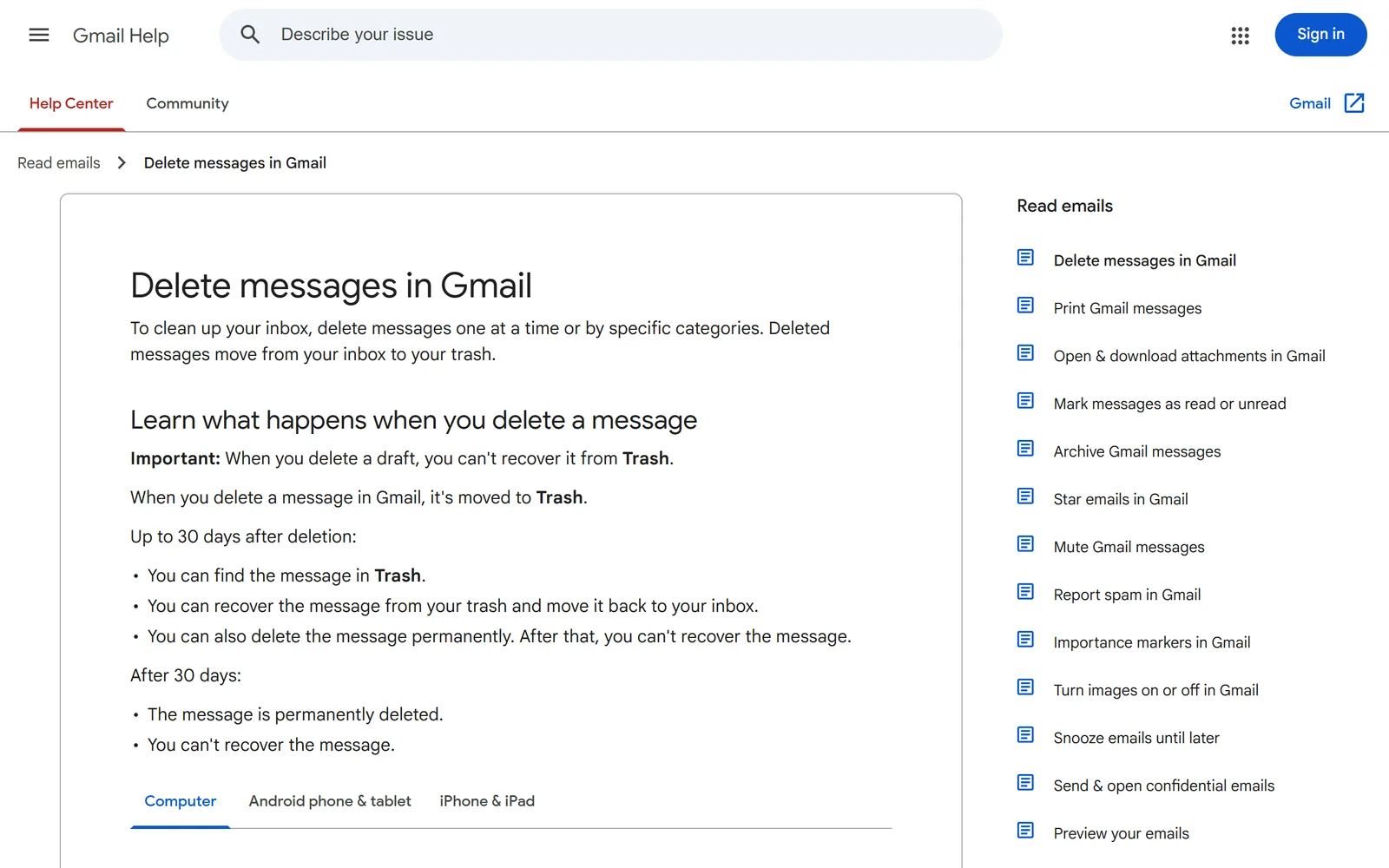
Open Trash from the left-hand menu (under More if you don't see it). Search inside Trash for the sender, tick the messages you want back, and use the Move to option to send them to your inbox. This only works for 30 days. After that Gmail removes them for good, so if you have any doubt, check Trash within a week or two. It's also worth glancing at the sender's address once more before you hit delete. A useful message from a bank or a school can end up in a pile of promotions that way.
What doesn't the manual method do?#
It deletes. It doesn't stop anything. Be clear about the limits before you rely on it.
- It doesn't unsubscribe you. The sender's next newsletter arrives tomorrow. You still have to find an unsubscribe link or use Gmail's Manage subscriptions, covered in our guide to unsubscribing in bulk. Even then, Manage subscriptions only stops new mail. Here is how it compares with Gnuke.
- It's one address at a time. Companies often send from several addresses. You'll repeat the search for each one, or search by domain with
from:@example.com. - The phone app is awkward. Google says its Select all box takes up to 50 messages at a time, and the phone steps have no link to select every match, so a sender with thousands of emails takes many rounds. For big cleanups, use a computer.
- It's easy to catch things you meant to keep. Unless you add exclusions, starred and labeled mail goes too.
- There's no list of what you did. Undo means digging through Trash and moving things back by hand, and the clock runs out after 30 days.
For a one-off clear-out, the manual route is fine. If you're doing it for the fifteenth sender, it gets old. On a paid Google plan you can also ask  Gemini to do the deleting, though it doesn't unsubscribe you either; here's what Gemini can and can't do in Gmail.
The one-click way with Gnuke#
Gnuke adds a bomb button to Gmail. Click it on a sender and two things happen:
- You're unsubscribed. Gnuke sends the standard one-click unsubscribe request when the sender supports it. If it doesn't, Gnuke sends the unsubscribe email from your address. If that isn't an option either, it opens the sender's unsubscribe page for you. The result is reported honestly for each sender, such as "Unsubscribe requested" or "Open link to unsubscribe," so you know what actually happened.
- Every email that sender ever sent you moves to Gmail's Trash. No search, no select-all link, no paging.
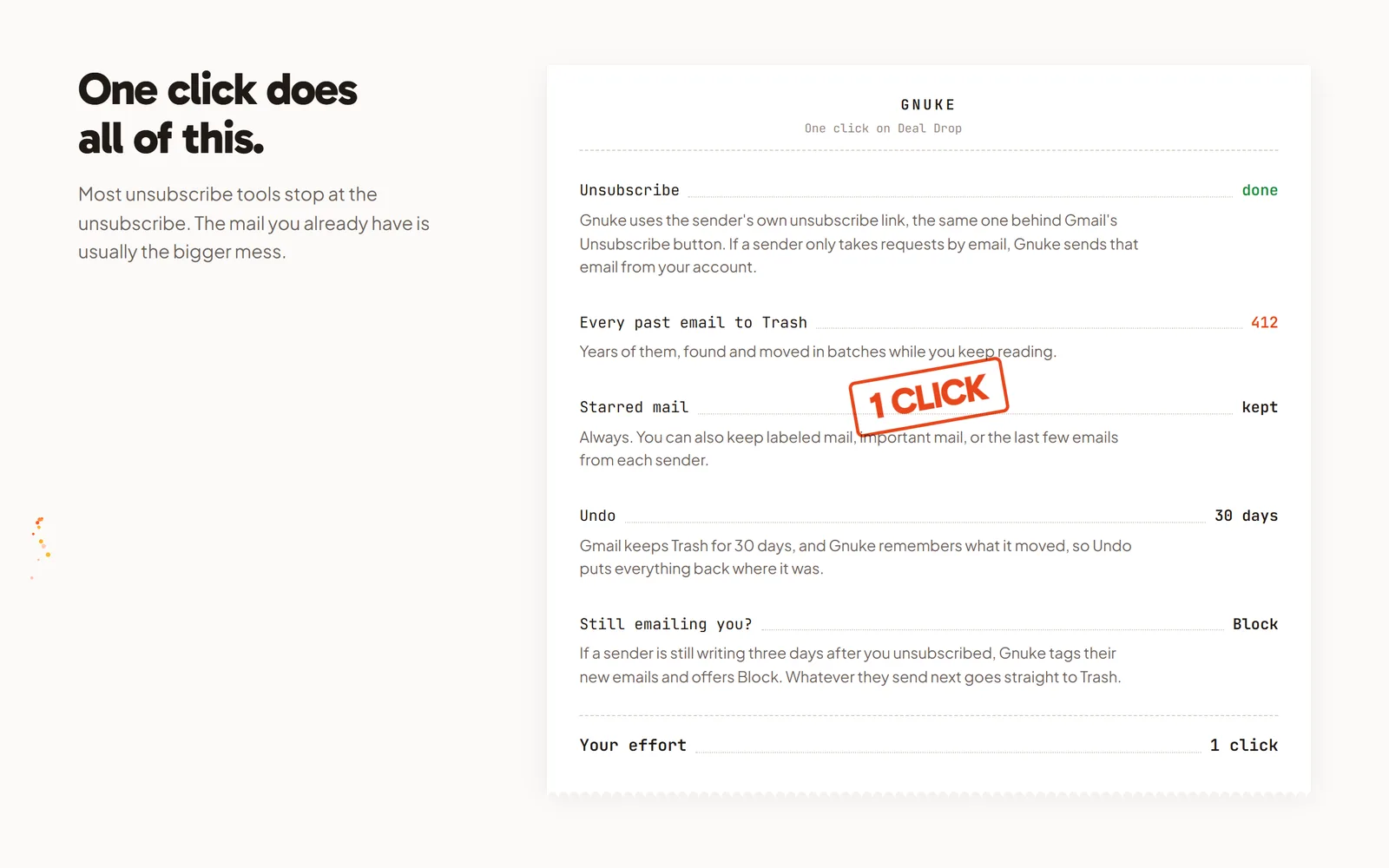
Things stay safe by design. Starred mail always stays. You can also choose to keep mail you've put in a label, mail marked important, and the sender's newest 1, 3 or 10 emails. Senders you mark as "always keep" are never offered for nuking. Undo for 30 days puts everything back, and Gnuke never deletes anything permanently.
Want the sender to stay gone? Gmail has its own block, which sends their future mail to Spam (here's how to block an email address in Gmail and when unsubscribing beats it). Or add Block in Gnuke, which creates a Gmail filter that sends that sender's future mail straight to Trash. Unblock removes it. The first time you use Block, Gnuke asks for the extra Gmail settings permission it needs to create the filter.
If you have a pile of senders, Clean up scans your newsletters and promos and ranks senders by how many emails they sent and how often you open them, including "Never opened" and "Quiet for 6+ months." Tick several and nuke them together. And if you'd rather clean from your couch, the phone app does the same thing straight from your phone to Gmail.
Gnuke talks to Gmail from your own browser. No Gnuke server sees your mail. See how Gnuke works or pricing: your first 10 nukes are free.
Which one should you use?#
| Method | Effort | What it deletes | Can you undo it? | Stops new mail? |
|---|---|---|---|---|
| Search, select all, delete | EffortA few steps per sender, on a computer | What it deletesMail already in your mailbox from that sender | Can you undo it?Yes, from Trash for 30 days, message by message | Stops new mail?No |
| Gmail filter set to Delete it | EffortSet up once per sender, on a computer | What it deletesNew mail from that sender, plus existing mail if you apply the filter to matching conversations | Can you undo it?Yes, from Trash for 30 days; delete the filter to stop it | Stops new mail?It sends new mail to Trash, but you stay subscribed |
| Gnuke | EffortOne click | What it deletesEverything the sender ever sent you (starred and labeled mail stays) | Can you undo it?Yes, Undo puts it all back for 30 days | Stops new mail?Yes, it unsubscribes you, and Block sends a sender's future mail to Trash if they keep emailing |
Use the manual search if you're clearing one sender, you want to see exactly what goes, and you don't mind the extra steps. Add a filter if the sender won't stop mailing you and you don't want to unsubscribe. Use Gnuke if you have many senders, if you'd rather end the mail at the source, or if you want a 30-day Undo you don't have to build yourself.
Clearing a particular sender? We have step-by-step guides for social sites ( Facebook,
 LinkedIn,
 Nextdoor,
 Pinterest and
 Quora), cloud accounts (
 AWS), shops (
 Amazon,
 Temu,
 Shein and
 Groupon) and delivery apps (
 DoorDash,
 Uber Eats and
 Instacart), covering each one's own email settings as well as the backlog.
Comparing tools? We looked at Gnuke vs Gmail's Manage subscriptions, Gnuke vs  Unroll.me, Gnuke vs
 Clean Email, Gnuke vs
 Trimbox and Gnuke vs
 SaneBox.
Frequently asked questions
How do I delete all emails from one sender in Gmail at once?
Search for from:sender@example.com, tick the checkbox at the top of the list, click the link to select all conversations that match the search if Gmail offers it, then click the trash can icon.
Can I undo it if I delete the wrong emails?
Yes, for 30 days. Deleted mail stays in Gmail's Trash for 30 days, and you can open Trash, select the messages and move them back to your inbox. After 30 days Gmail removes them for good.
Does deleting the emails unsubscribe me from the sender?
No. Deleting only clears what is already in your mailbox. The sender can keep mailing you, so unsubscribe too, or use a tool such as Gnuke that does both in one click.
Will the emails come back after I delete them?
The ones you deleted won't, unless you move them back from Trash within 30 days. New mail is another matter: the sender keeps mailing you until you unsubscribe, set a filter that deletes their mail, or block them.
Can I delete every email from a sender in the Gmail phone app?
Yes, but in rounds. Google says the app's Select all box takes up to 50 messages at a time, and its phone steps don't include the link that selects every match on the web. For a big sender, use Gmail on a computer.
Will this also delete starred emails?
Yes, unless you exclude them. Add -is:starred to your search, as in from:news@example.com -is:starred. Google notes that a conversation with both starred and unstarred messages can still show up, so look before you delete. Gnuke always keeps starred mail.
What if the sender uses several email addresses?
A search for one address only finds that address. Search for the domain instead, for example from:@example.com, or run the search once for each address. Be careful with shared providers such as gmail.com.
Quoting this? Cite this page
Gnuke. "How to delete all emails from one sender in Gmail." Published October 10, 2026, updated November 24, 2026. https://getgnuke.com/articles/delete-all-emails-from-one-sender-gmail
How we checked: the Gmail steps come from Google's own help pages on deleting mail, search operators and filters, linked in the article and checked again November 24, 2026.
You may republish these steps with attribution and a link to https://getgnuke.com/articles/delete-all-emails-from-one-sender-gmail.