 Gnuke
Gnuke Pinterest splits its email settings two ways: one switch that turns all of its email notifications off, and a toggle per category if you'd rather keep, say, messages and drop the Pin picks. Below are both, taken from Pinterest's public Help Center in October 2026, plus what keeps arriving afterward and how to clear the Pinterest mail already sitting in
  Gmail.
The one switch that turns off Pinterest email#
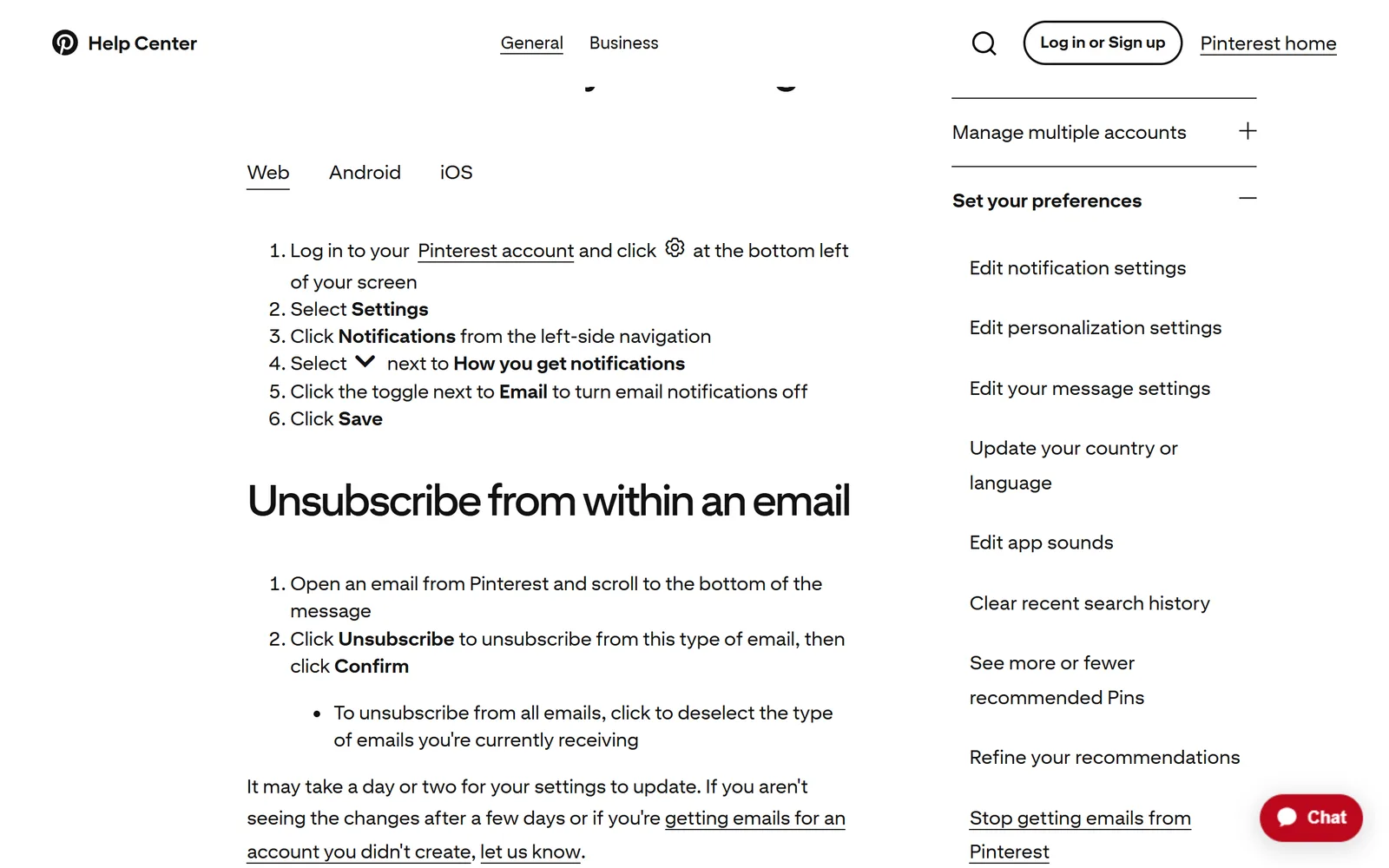
Pinterest's help page Stop getting emails from Pinterest (checked October 2026) says you can unsubscribe "from your settings or from any Pinterest email." The settings route on pinterest.com:
- Log in and click the gear icon at the bottom left of the screen.
- Select Settings.
- Click Notifications in the left-side navigation.
- Click the arrow next to How you get notifications.
- Turn off the toggle next to Email.
- Click Save.
In the app, the same help page gives slightly different first taps for each phone. On  Android, tap your profile picture at the bottom right, then Notifications. On
  iPhone, tap your profile picture at the bottom right, then the gear icon at the top right, then Notifications. From there both match: open How you get notifications, switch off Email, and tap Turn off all. (Pinterest's separate notification settings page puts the gear tap in the Android steps too, so if Notifications isn't on your profile screen, look for the gear.)
Business accounts get there a little differently. Pinterest's help says to tap your profile photo at the bottom right, then the ellipsis icon at the top right.
Keep the email you want, drop the rest#
If you only want fewer Pinterest emails, skip the master switch. Pinterest's Edit notification settings page says each notification category has three options, Push, Email and In-app, with a toggle for each. On the web, open the category from Settings, then Notifications, flip the Email toggle, and click Save at the bottom of the screen. There's also a Reset button that puts every notification back to Pinterest's defaults. In the app, changes save on their own.
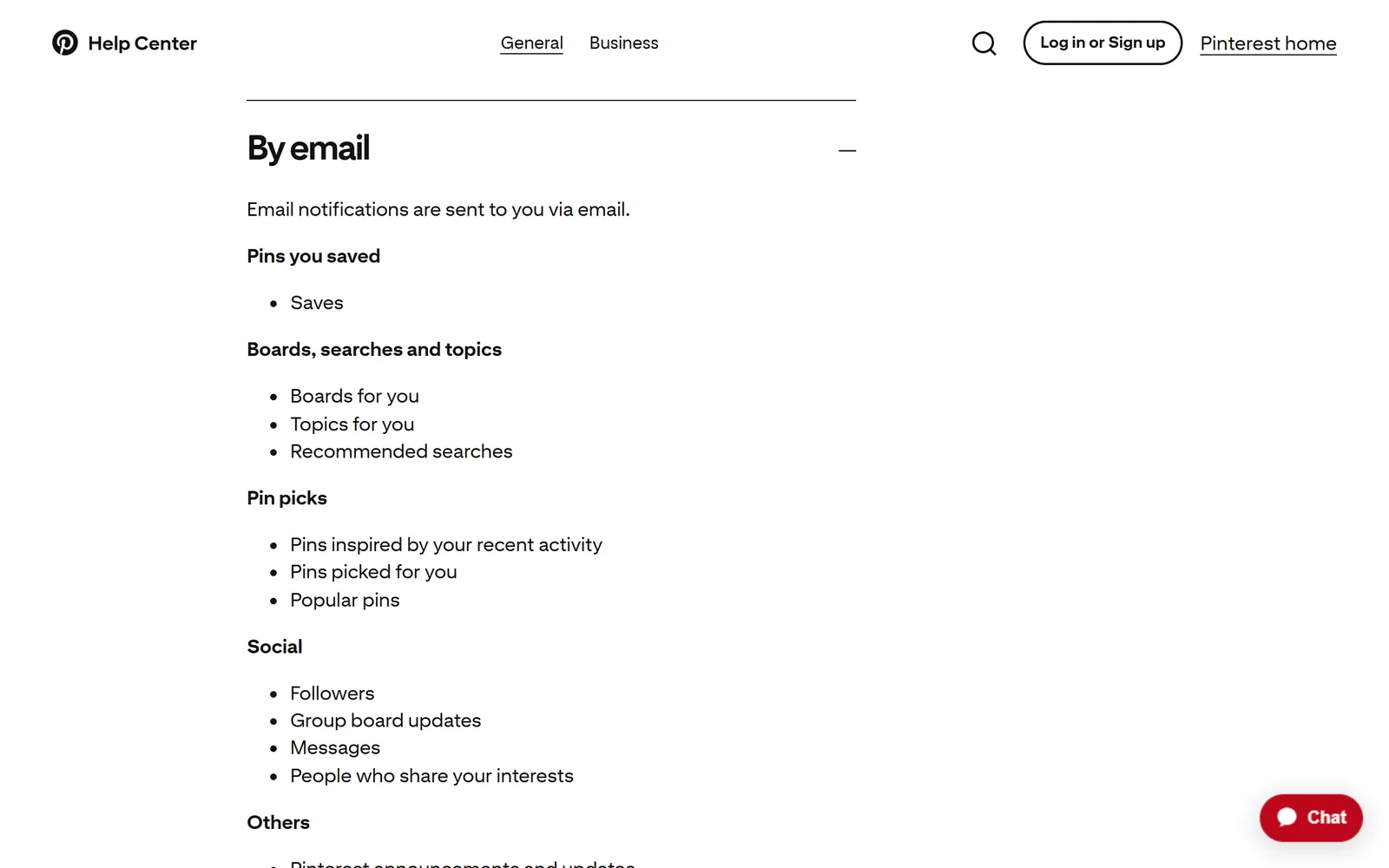
The same page lists what Pinterest can email you about:
- Pins you saved: Saves
- Boards, searches and topics: Boards for you, Topics for you, Recommended searches
- Pin picks: Pins inspired by your recent activity, Pins picked for you, Popular pins
- Social: Followers, Group board updates, Messages, People who share your interests
- Others: Pinterest announcements and updates, Feedback and surveys
Pinterest's Privacy Policy (effective April 30, 2025, with an update announced for November 12, 2026) gives an example: "we send weekly updates that include Pins you may like." Switch off Email for Boards, searches and topics and for Pin picks, leave Social on, and you keep messages and follower news while the suggestions stop.
Unsubscribing from inside a Pinterest email#
Pinterest says you can unsubscribe from any of its emails. According to the stop-emails help page, you scroll to the bottom of the message, click Unsubscribe, then click Confirm. That stops one type of email. To stop all of them from that screen, deselect every type you're currently receiving.
If the email is about an account you never created, Pinterest has a separate route on its page for someone else signing up with your email: click Unsubscribe, then Didn't sign up for Pinterest? Let us know, then Remove my email address.
What still arrives, and how long it takes#
Pinterest is specific about timing. Its help page says "It may take a day or two for your settings to update," and to contact Pinterest if you still see no change after a few days. For the never-had-an-account route, it says you "might still receive an email or two" while its email system catches up.
On what keeps coming, Pinterest's pages are less direct. None of the Help Center pages we read lists which emails the Email switch leaves on, but they do describe the account email. Pinterest's page on managing your email address says your account email is used "to log in, receive updates, and important notifications." Pinterest emails you a password reset link when you ask for one, per its password help, and a message titled "Your Pinterest verification code" when you change your email address. Neither appears on the By email list above. And the Privacy Policy says that if a policy change is significant, Pinterest "may provide a more prominent notice, such as by sending you an email."
One more line on Pinterest's troubleshooting page matters here: "We stop sending you emails if you mark an email you receive from us as spam." It doesn't say whether that includes password resets, so if you still use your account, the settings above are the safer way to cut the volume.
Gmail's Unsubscribe link and Manage subscriptions#
Gmail can also send the unsubscribe for you. Many marketing emails show an Unsubscribe link next to the sender's name, and Manage subscriptions (in the left menu under More on a computer) lists the senders that mail you most, each with its own Unsubscribe button.  Google's help page says it can take a few days for the sender to unsubscribe you, and that new email from that sender goes to Spam in the meantime. Our guide to unsubscribing in bulk in Gmail walks through it.
Both routes stop new mail and delete nothing. Every Pinterest email you already have stays where it is. For how Manage subscriptions compares with a tool that clears the backlog too, see  Gnuke vs Gmail's Manage subscriptions.
Clear out the Pinterest email already in Gmail#
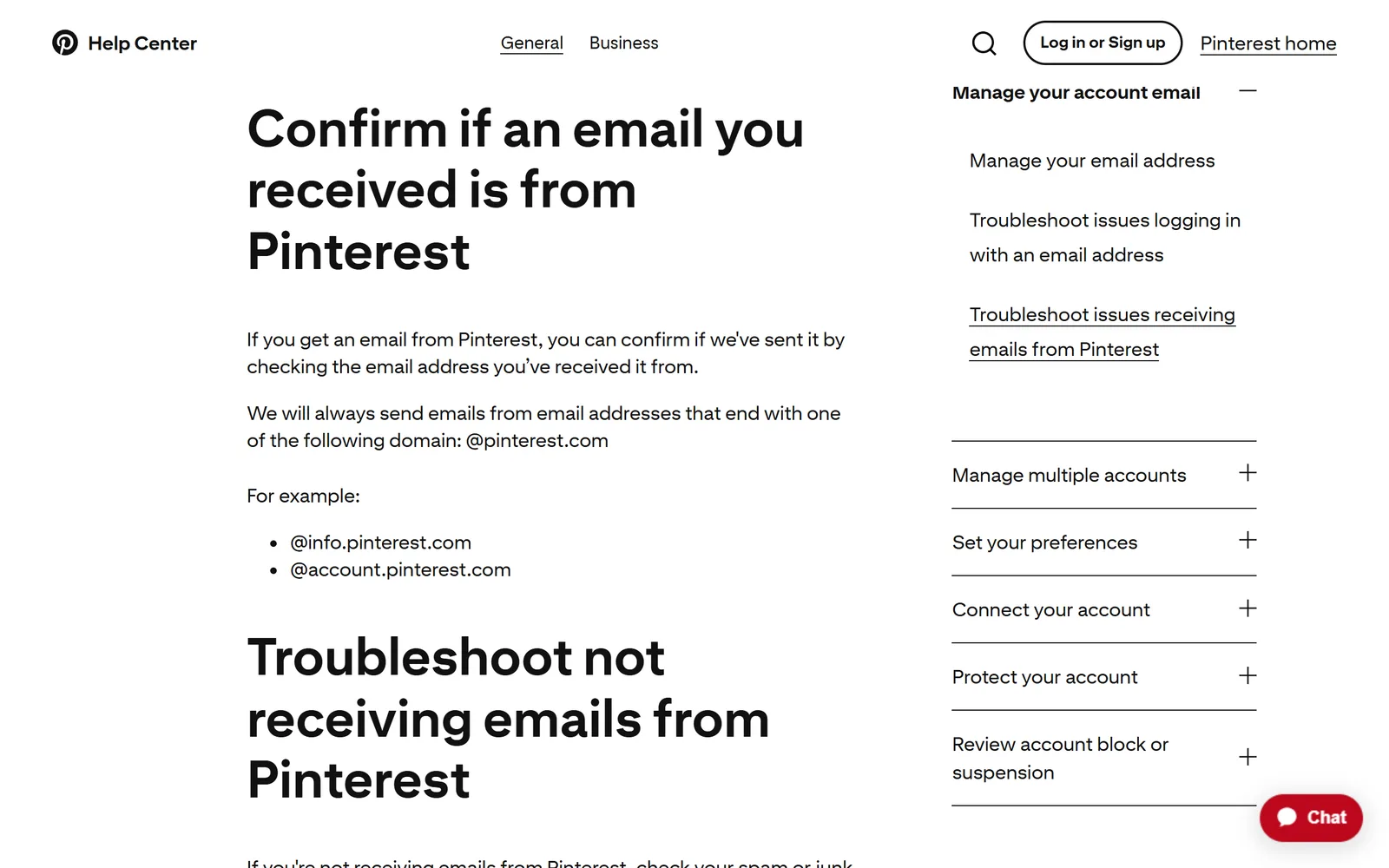
Pinterest's troubleshooting page says it always sends email from addresses ending in @pinterest.com, such as @info.pinterest.com and @account.pinterest.com. That gives you one search that catches all of it: from:pinterest.com.
By hand, run that search in Gmail, select every matching conversation and delete them, as our guide to deleting all emails from one sender shows step by step.
Or do both jobs in one click. Gnuke is a  Chrome extension that adds a bomb button to Gmail. Click it on a Pinterest email and Gnuke unsubscribes you in the best way the sender supports: the standard one-click request if it's there, otherwise an unsubscribe email from your own address, otherwise it opens the sender's unsubscribe page for you. In the same click, every email from that sender moves to Gmail's Trash.
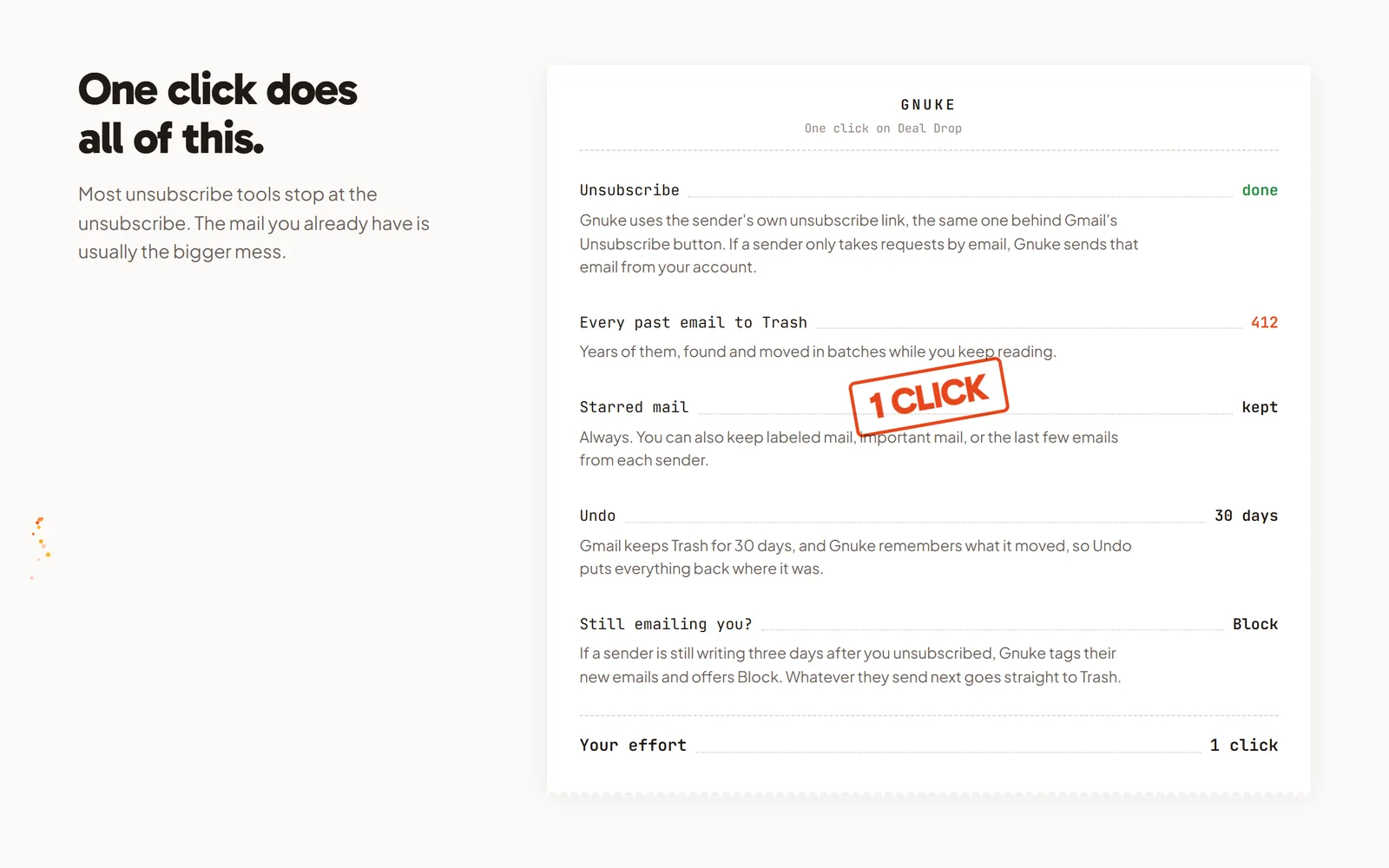
Starred mail always stays, so star anything worth keeping first, like an update about a group board you're on. You can also keep the sender's newest 1, 3 or 10 emails, mail in a label, or mail marked important. Undo brings everything back for 30 days, and Gnuke never deletes anything permanently. See how it works.
If Pinterest keeps mailing more than 3 days after you unsubscribed, Gnuke's "Still emailing you" list flags it and offers a one-click Block, a Gmail filter that sends future mail from that sender straight to Trash. For a bigger cleanup, Clean up ranks all your newsletter and promo senders so you can tick Pinterest alongside the rest and nuke them together. On your phone, the Gnuke phone app does the same thing straight to Gmail.
Gnuke works from your own browser or phone, and no Gnuke server sees your mail. Ten nukes a month are free; Unlimited is $29.99 a year or $4.99 a month (see pricing).
Which Pinterest fix fits you#
If you still pin, the per-category toggles are the best fit: switch off Email on the recommendation groups and keep messages and followers. If you want all the notification email gone, the Email switch under How you get notifications does it in one move, and Pinterest says to allow a day or two. If you never signed up, use Remove my email address. None of these empties your inbox, though. Gnuke stops the mail and clears every old Pinterest email in the same click.
Other networks bury their switches in different places: see how to unsubscribe from  Facebook emails,
  LinkedIn emails and
  Quora emails.
Frequently asked questions
How do I stop all emails from Pinterest?
On pinterest.com, click the gear icon at the bottom left, then Settings, then Notifications. Open How you get notifications, turn off the Email toggle and click Save. In the app, the same toggle sits under Notifications, followed by Turn off all. Pinterest's Help Center says the change can take a day or two.
Can I keep some Pinterest emails and stop the rest?
Yes. Pinterest's notification settings are split into categories, and each one has its own Push, Email and In-app options. Its Help Center lists email types such as Saves, Boards for you, Pin picks, Followers, Messages, Pinterest announcements and updates, and Feedback and surveys. Switch off Email only on the ones you don't want.
Why am I still getting Pinterest emails after unsubscribing?
Pinterest says settings can take a day or two to update, and asks you to contact it if nothing changes after a few days. The Unsubscribe link in an email stops only that type of email unless you deselect every type. Account email, such as a password reset link you request, isn't on Pinterest's list of email notifications.
I never made a Pinterest account. How do I stop the emails?
Open the email, click Unsubscribe at the bottom, click Didn't sign up for Pinterest? Let us know, then click Remove my email address. Pinterest says you might still get an email or two afterward, since its email system takes a few days to update.
How can I tell an email really came from Pinterest?
Pinterest's Help Center says it always sends email from addresses ending in @pinterest.com, such as @info.pinterest.com and @account.pinterest.com. That also makes from:pinterest.com the Gmail search that finds all of it.
Does turning off Pinterest emails delete the ones I already have?
No. Pinterest's settings and Gmail's Unsubscribe link only stop future mail. Every Pinterest email already in Gmail stays until you delete it. Gnuke unsubscribes you and moves every email from the sender to Gmail's Trash in one click, with Undo for 30 days.
Quoting this? Cite this page
Gnuke. "Stop Pinterest emails: one Email switch, or one type at a time." Published October 15, 2026, updated October 15, 2026. https://getgnuke.com/articles/unsubscribe-from-pinterest-emails
The steps come from Pinterest's own Help Center pages, linked in the article and checked October 15, 2026.
You may republish these steps with attribution and a link to https://getgnuke.com/articles/unsubscribe-from-pinterest-emails.