 Gnuke
Gnuke Nextdoor doesn't send one newsletter you can cancel. It sends a stack of separate email types (digests, For Sale & Free roundups, local news, posts from public agencies), and each has its own switch. That's why one unsubscribe click rarely ends it. Below are Nextdoor's own steps, taken from its help center in October 2026, followed by the part Nextdoor can't help with: the years of Nextdoor mail already sitting in
  Gmail.
Turn off Nextdoor emails in Notification settings#
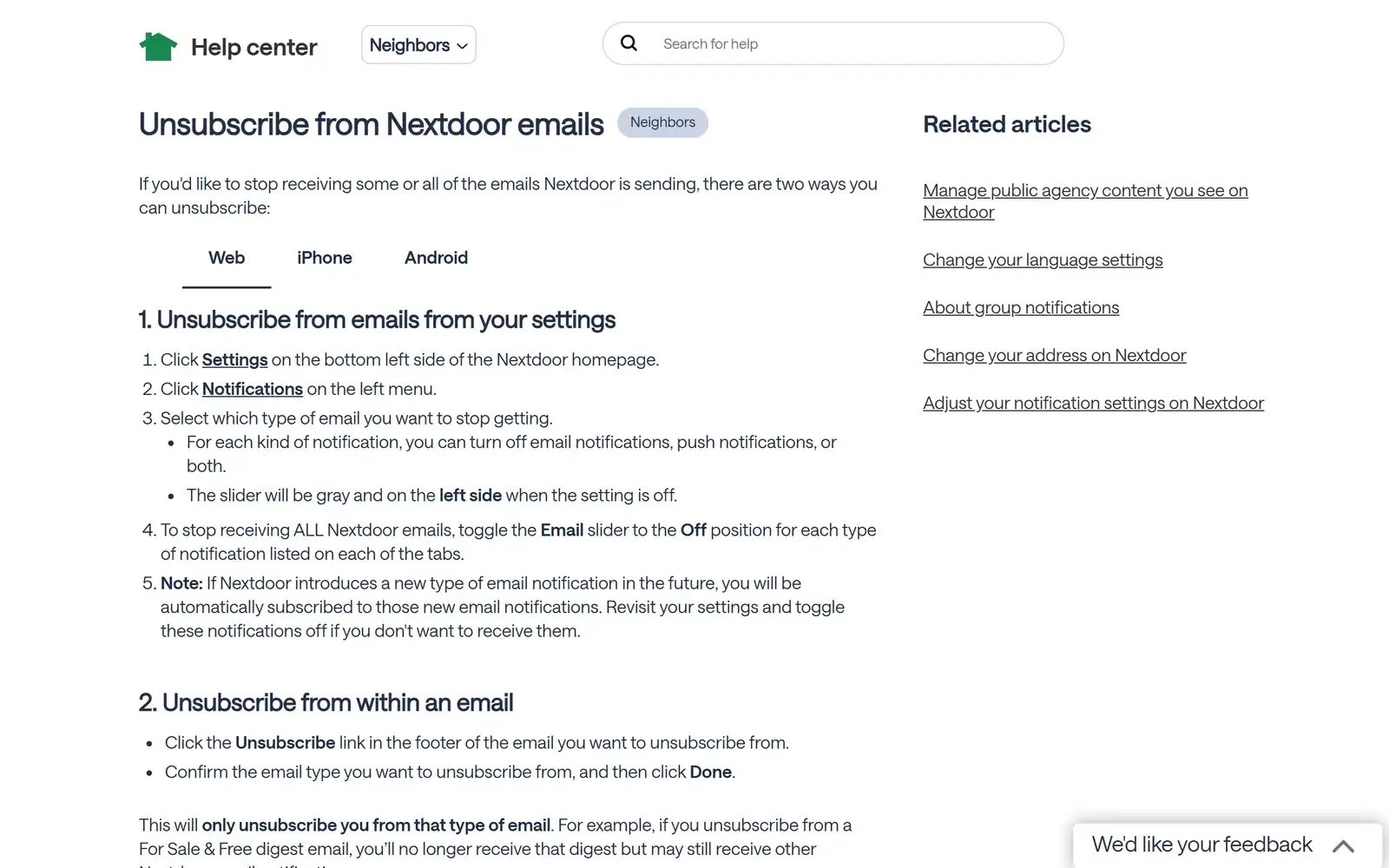
Nextdoor's help article Unsubscribe from Nextdoor emails has separate tabs for the web,  iPhone and
  Android.
On the web:
- Click Settings at the bottom left of the Nextdoor homepage.
- Click Notifications in the left menu.
- Pick the type of email you want to stop and turn its Email slider off. A slider that's gray and on the left is off.
In the iPhone or Android app:
- Tap your profile icon or photo at the top right.
- Tap Settings at the bottom of the screen.
- Tap Notifications, pick a type and turn off its Email slider. The app also has an Allow Nextdoor notifications toggle that turns off email and push for that type together.
There's no master switch. To stop every Nextdoor email this way, you turn the Email slider off for each type, on each tab, and then click Save. Nextdoor's troubleshooting notes add two more things: keep cookies on, and don't make the changes in a private or incognito window, or they may not stick.
The Unsubscribe link in a Nextdoor email#
Nextdoor puts an Unsubscribe link in the footer of its emails. Click it, confirm the email type you want to drop, then click Done.
It only covers that one type, though. Nextdoor's own example: unsubscribe from a For Sale & Free digest and that digest stops, while the rest of Nextdoor's emails keep coming. So if you've clicked the footer link three times and Nextdoor still shows up every morning, that's the reason. The settings page is faster, because you can switch everything off in one sitting.
What these switches don't cover#
A few gaps from Nextdoor's help pages are worth knowing before you call it done.
- New email types arrive switched on. Both Unsubscribe from Nextdoor emails and Adjust your notification settings on Nextdoor say that when Nextdoor adds a new type of email notification, you're subscribed to it automatically. Turning everything off today doesn't cover whatever Nextdoor launches next.
- Deleting the app doesn't stop email. The iPhone and Android tabs of the help article say removing the app only takes it off your device.
- You can't limit emails to your own neighborhood. Nextdoor says notifications can be adjusted by post type only, not by where the poster lives. For fewer emails without going silent, it suggests keeping only the daily or weekly digests.
- Local news digests have their own setting, under Notification Settings, then Digests, then Local News, according to Nextdoor's Local News notifications page.
- Public agencies are handled separately. Open Public Agencies (in the left menu on the web, or from your profile picture in the app), pick an agency on the Agencies tab and click the Subscribed button. Nextdoor's agency content page says you then stop getting email notifications for what you unsubscribed from or muted.
- Account email keeps coming. Nextdoor sends sign-in codes and email-change confirmation links by email, and its Privacy Policy (last updated October 7, 2026) lists announcements, updates, security alerts and support messages among the email it sends. Neither the unsubscribe article nor the notification settings article says the sliders turn those off, so plan on getting them as long as you have an account.
Neither article says how long a change takes to apply. If a digest still arrives the next morning, check that the setting saved before you assume it failed.
If you never joined and the emails are invitations, Nextdoor's page on stopping email invitations says to click the unsubscribe link at the bottom of the invitation, and that Nextdoor won't email you again.
Deactivate if you want all of it gone#
If you'd rather leave than flip a long row of sliders, Nextdoor's Deactivate or delete your Nextdoor account page says deactivating and deleting both unsubscribe you from all email notifications. You can recover a deactivated account later. Deleting is permanent and removes your posts, comments and profile.
Go to Settings, then Account settings, then Deactivate your account. Pick a reason, then either confirm deactivation or use the "click here" link below the button to delete instead.
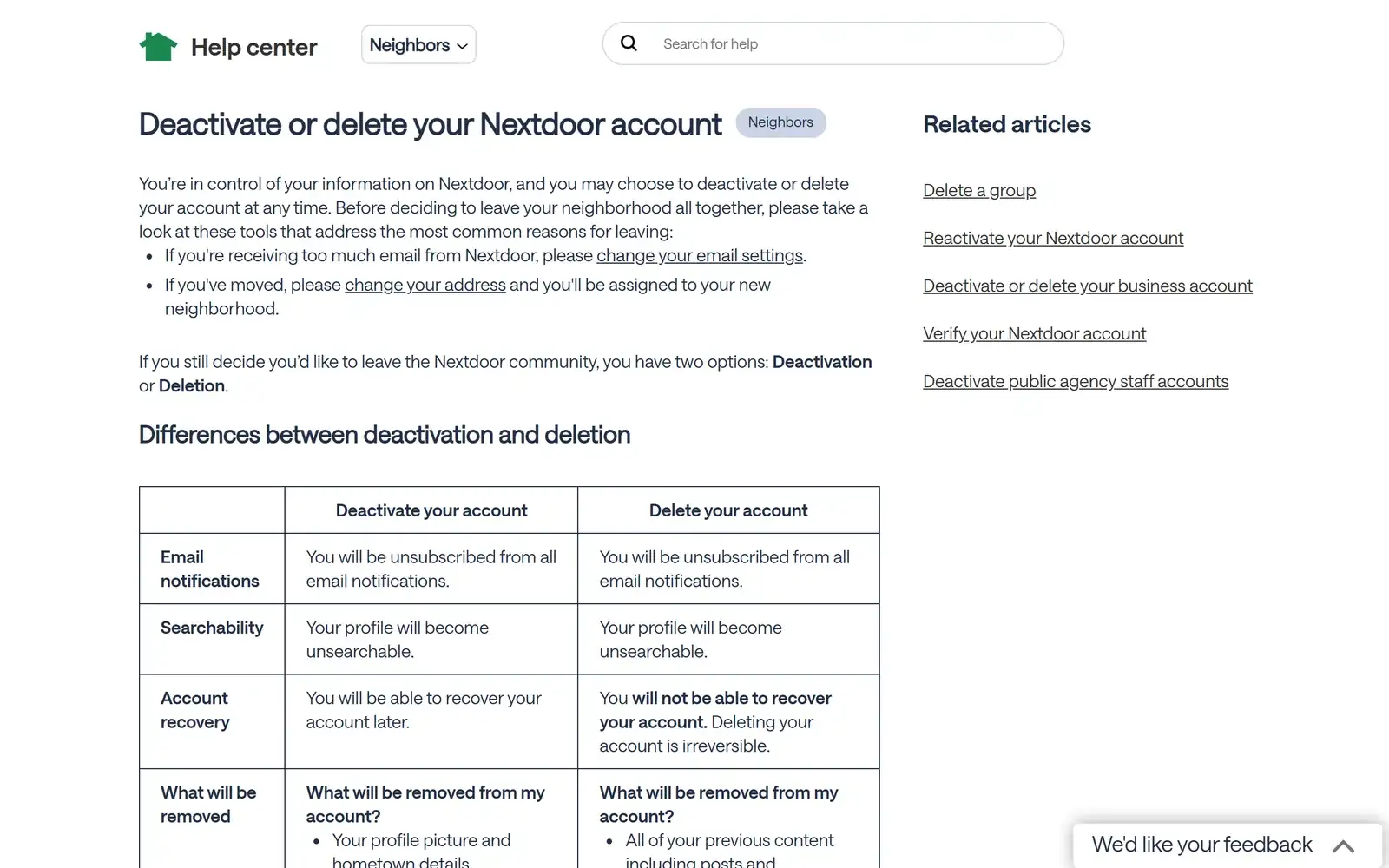
Here's every route side by side:
Gmail's Unsubscribe link and Manage subscriptions#
Gmail has its own shortcuts. Many marketing emails show an Unsubscribe link next to the sender's name at the top of the message, and Gmail's Manage subscriptions page lists the senders that email you most, each with an Unsubscribe button. Our guide to unsubscribing in bulk in Gmail walks through both.
Both ask the sender to stop sending new mail. Neither removes an email you already have, so every Nextdoor digest from the last few years stays in Gmail, counting against your storage, until you delete it. We compared the two approaches in  Gnuke vs Gmail's Manage subscriptions.
Deleting the pile by hand has a Nextdoor wrinkle. Nextdoor's help asks members to add four addresses to their contacts: nextdoor@nextdoor.com, reply@rs.email.nextdoor.com, no-reply@rs.email.nextdoor.com and no-reply@hs.email.nextdoor.com. A Gmail search for one of them misses the other three. Search for each, or combine them with the curly braces that  Google's search operators use to match any of several terms:
 {from:nextdoor@nextdoor.com from:reply@rs.email.nextdoor.com from:no-reply@rs.email.nextdoor.com from:no-reply@hs.email.nextdoor.com}. Then select every conversation that matches and delete them, as our guide to deleting all emails from one sender shows.
Clear the Nextdoor backlog in one click#
Gnuke is a  Chrome extension that adds a bomb button to Gmail. Click it on a Nextdoor email and it does both jobs at once.
First it unsubscribes you in the best way the sender supports: the standard one-click request if the sender offers it, otherwise an unsubscribe email from your address, otherwise it opens the sender's unsubscribe page for you. Then it moves every email from that sender to Gmail's Trash, so you skip the search, the select-all link and the paging through years of For Sale & Free digests.
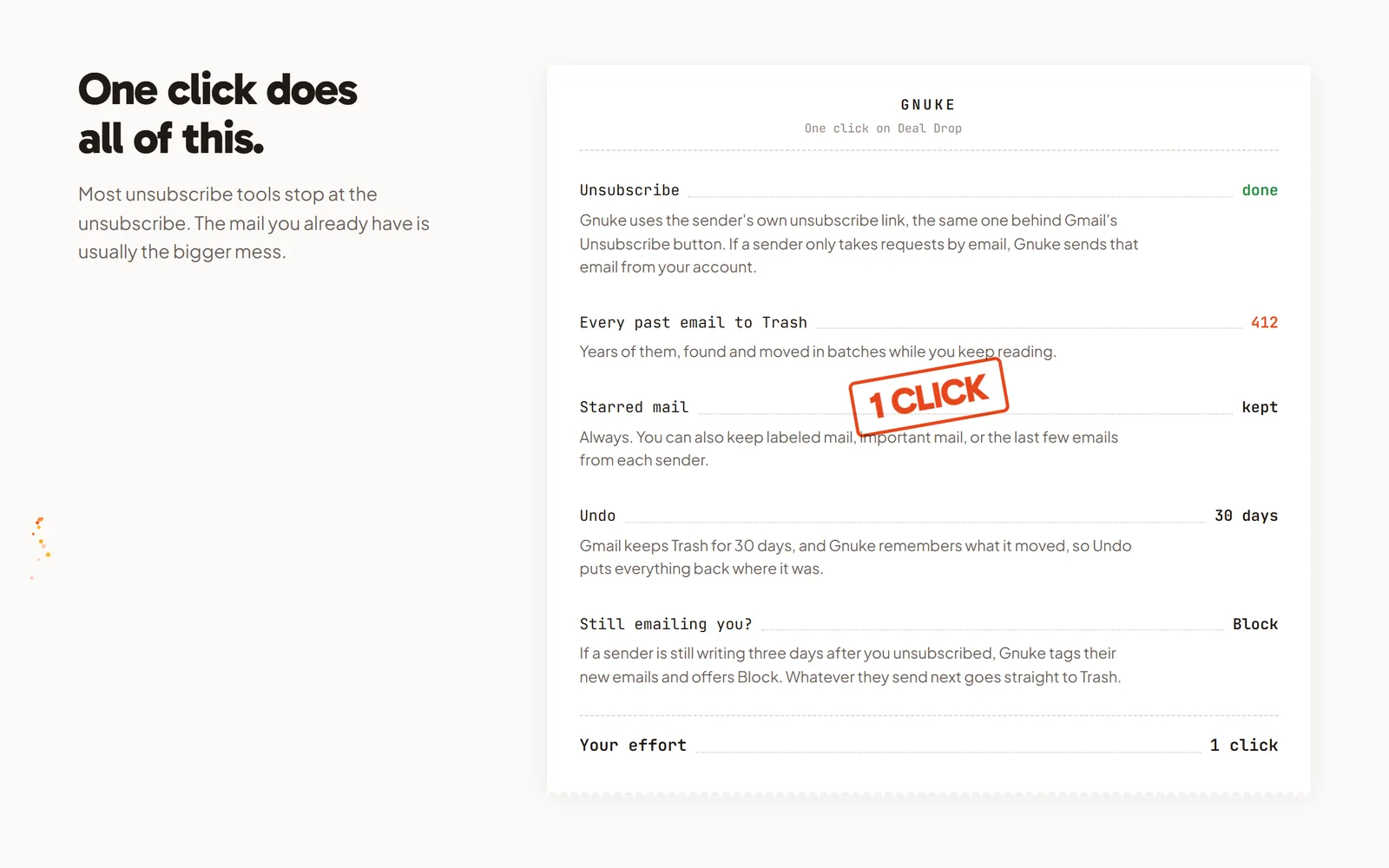
Starred mail always stays. You can also keep mail in a label, mail marked important, and the sender's newest 1, 3 or 10 emails, which is handy if you want the latest neighborhood digest to survive. Undo brings everything back for 30 days, and Gnuke never deletes anything permanently.
Since Nextdoor switches new email types on by default, one more Gnuke feature earns its keep here. "Still emailing you" flags any sender that mails you more than 3 days after you unsubscribed and offers a one-click Block, which creates a Gmail filter that sends that sender's future mail straight to Trash. The first time you use it, Block asks for one extra Gmail settings permission.
If Nextdoor is one of many senders crowding your inbox, Clean up ranks your newsletters and promos by how much they send and how often you open them, and lets you nuke several at once. The phone app does the same from your phone. See how it works and pricing: 10 nukes a month are free, and Unlimited is $29.99 a year or $4.99 a month. Gnuke talks to Gmail from your own browser or phone, and no Gnuke server sees your mail.
Other social networks work differently#
Nextdoor splits its email by notification type.  Facebook and
  LinkedIn organize theirs in other ways, with their own blind spots. See how to unsubscribe from Facebook emails and how to unsubscribe from LinkedIn emails.
Frequently asked questions
How do I stop all Nextdoor emails?
Open Settings, then Notifications, and move the Email slider to Off for every notification type on every tab. Nextdoor's help says that's how to stop all of its emails. If you want a full break, deactivating your account unsubscribes you from all email notifications, and you can come back later.
Why do I still get Nextdoor emails after I unsubscribed?
The Unsubscribe link in a Nextdoor email stops only that type of email, such as the For Sale & Free digest. Nextdoor also signs you up automatically for any new type of email notification it adds, so check your Notification settings again from time to time.
Does deleting the Nextdoor app stop the emails?
No. Nextdoor's help says deleting the app only removes it from your device. Your account stays, and so do its emails. Turn the emails off in Settings, or deactivate the account.
Can I get Nextdoor emails only about my own street or neighborhood?
No. Nextdoor says you can only adjust notifications by post type, not by where the poster lives. To get fewer emails, it suggests keeping only the daily or weekly digests.
I don't have a Nextdoor account. How do I stop the invitations?
Click the unsubscribe link at the bottom of the invitation. Nextdoor's help says it will not email you again after that.
Does unsubscribing delete the Nextdoor emails already in Gmail?
No. Nextdoor's settings, its footer link and Gmail's Unsubscribe all stop future mail only. The old emails stay until you delete them, or until a tool like Gnuke moves them to Trash for you.