 Gnuke
GnukeOpen the email, click the three-dot More menu next to Reply, and pick Block followed by the sender's name. That's it. From then on,  Gmail sends everything new from that address to Spam. The Gmail app on
  iPhone and
  Android works the same way. Blocking leaves a few things behind, though, and for most newsletters unsubscribing is the smarter first move.
Block a sender on a computer#
Here are the steps from  Google's help page on blocking, checked October 2026:
- Open Gmail and open a message from the sender.
- At the top right, next to Reply, click More (the three vertical dots).
- Click Block "sender name".
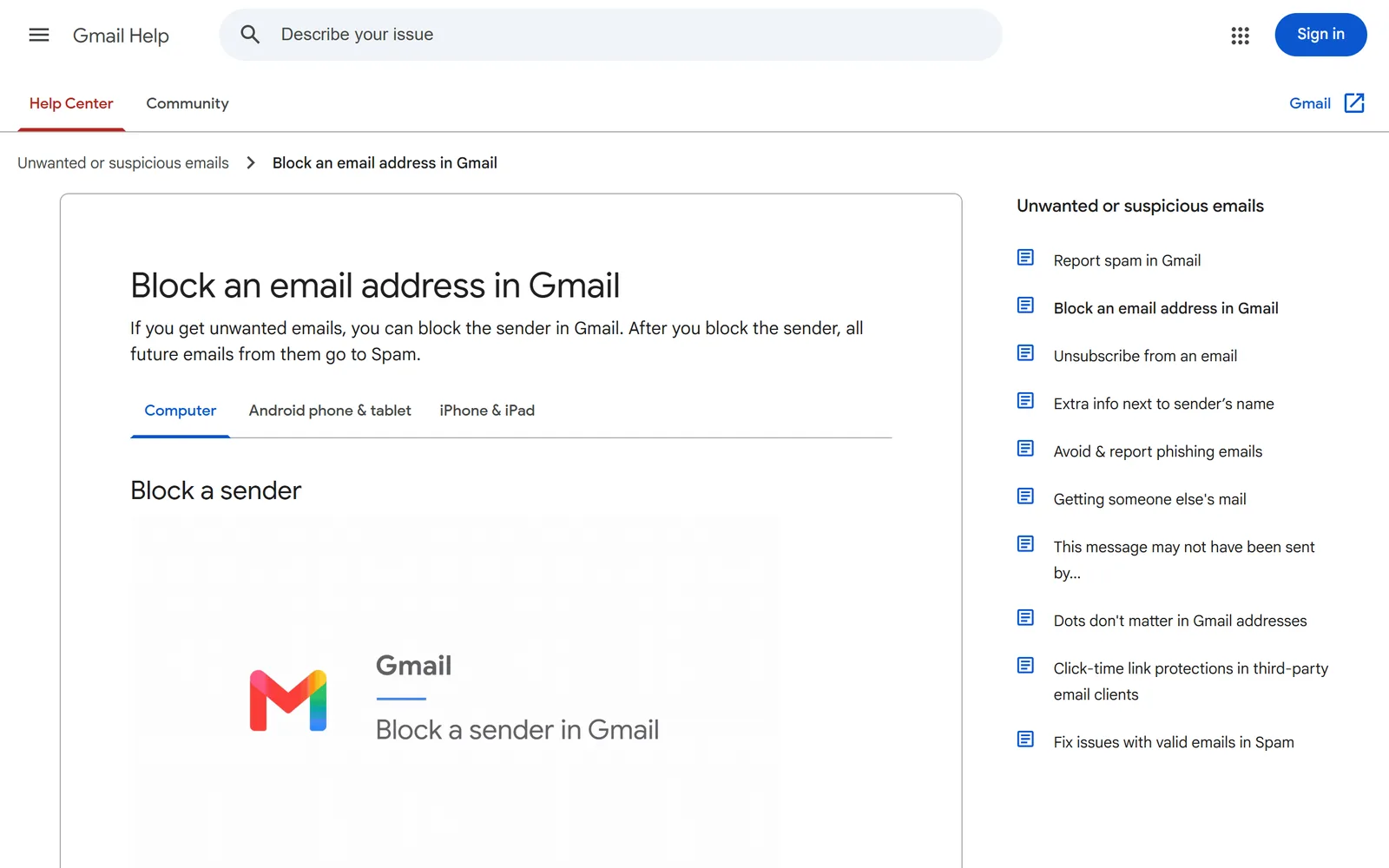
Changed your mind? Open a message from them and choose More, then Unblock "sender name". If you can't find one of their emails, go to Settings, See all settings, then the Filters and Blocked Addresses tab. Tick the sender and click Unblock selected addresses.
Block a sender in the Gmail app on iPhone and Android#
The phone steps are nearly identical. Google lists them for iPhone and iPad and for Android:
- Open the Gmail app and open a message from the sender.
- At the top right, next to Reply, tap More.
- Tap Block "sender name".
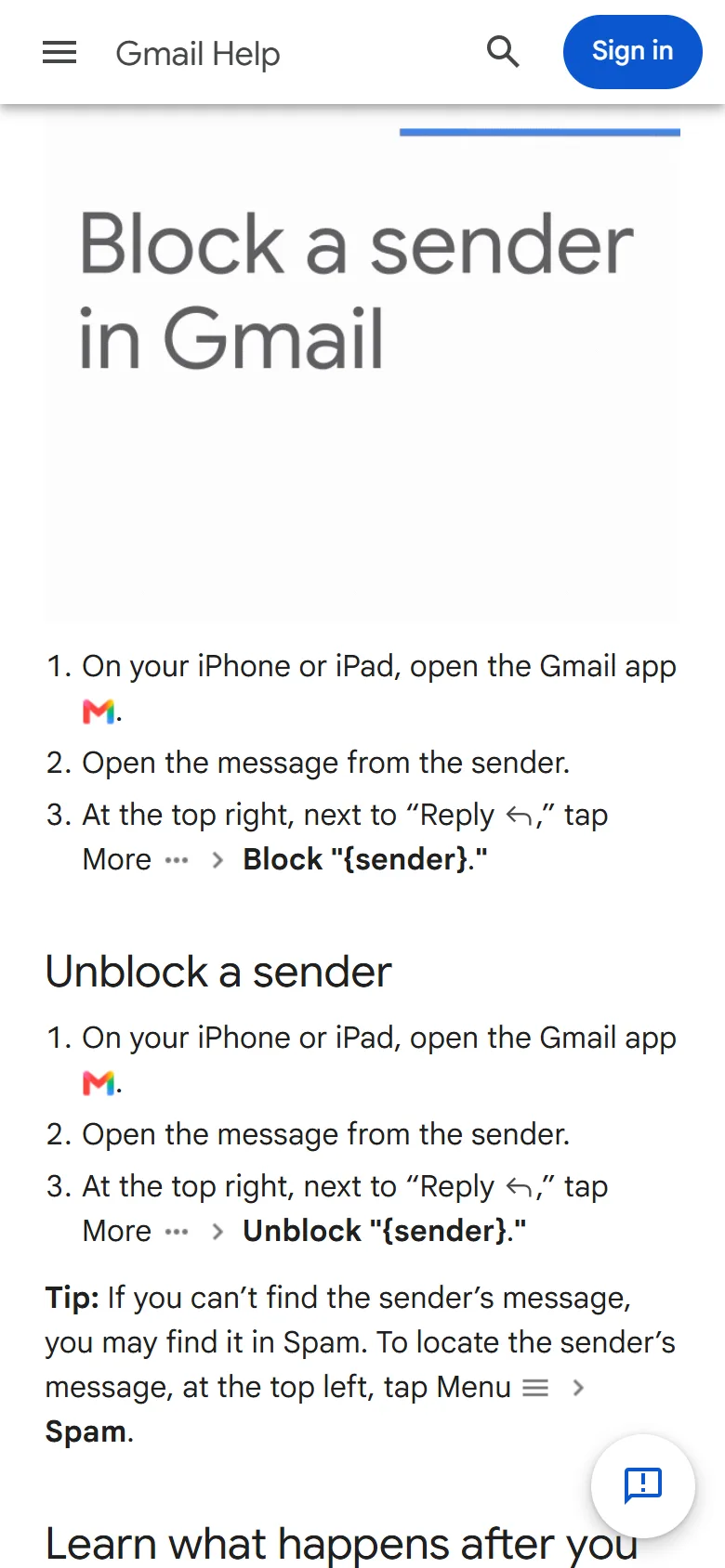
To unblock on a phone, follow the same steps and tap Unblock instead. If the sender's latest message is nowhere to be found, it's probably in Spam: tap Menu, then Spam.
What blocking does and does not do#
Blocking sounds final, but it's really a sorting rule on your side. Here's what Google's pages say, and where people get caught out:
- Their new mail lands in Spam. Gmail's help page puts it plainly: "After you block a sender, all future emails from them go to Spam." The mail still arrives in your account. It just skips your inbox.
- Your old mail stays put. Blocking only covers future emails. Everything that sender already sent you sits right where it was.
- You're still on their list. Google's Manage subscriptions help page says: "If you block a sender, it doesn't automatically unsubscribe you from their mailing list." The sender keeps mailing. You just stop seeing it in your inbox.
- Google's blocking page doesn't describe any notice going to the sender. The block lives inside your own Gmail.
- It covers one address. Gmail's page is titled "Block an email address," and that's what it does. A company that mails from three addresses needs three blocks.
Spam is also where real junk ends up. If a message is a scam rather than an annoying newsletter, Google suggests reporting it as spam or as phishing instead.
Block or unsubscribe? Which to use when#
Google answers this one itself. On the blocking page, it suggests that if you get frequent promotional emails or newsletters and don't want to block the sender, you should unsubscribe instead.
Unsubscribe from senders that play fair: stores, newsletters, apps you signed up for. A real company honors the request, and the mail stops at the source. Since February 2024, Google has required anyone sending more than 5,000 messages a day to Gmail to support one-click unsubscribe, according to its sender guidelines. Gmail also sends anything a sender mails after you unsubscribe to Spam, so stragglers don't clutter your inbox while the request goes through. Our guide to unsubscribing in bulk covers Gmail's Manage subscriptions list, which handles a lot of senders in a row.
Block the senders who don't play fair: the ones who keep writing after you unsubscribed, the ones with no unsubscribe link at all, and the person you'd just rather not hear from. Blocking doesn't depend on the sender doing anything.
Both Gmail options leave the same thing behind: the pile of old mail.
Clear the past mail too#
Blocking and unsubscribing only deal with what comes next. If a sender has been at it for years, there could be hundreds of their emails still sitting in your account, and both options leave every one of them there.
To clear them by hand, search for from: plus the address, tick the box to select everything, click the link to select every conversation that matches, and hit the trash can. We walk through it step by step, with a trick for keeping starred mail, in how to delete all emails from one sender in Gmail. It takes a couple of minutes per sender, which is fine for one and tedious for twenty.
How  Gnuke handles a sender who won't quit#
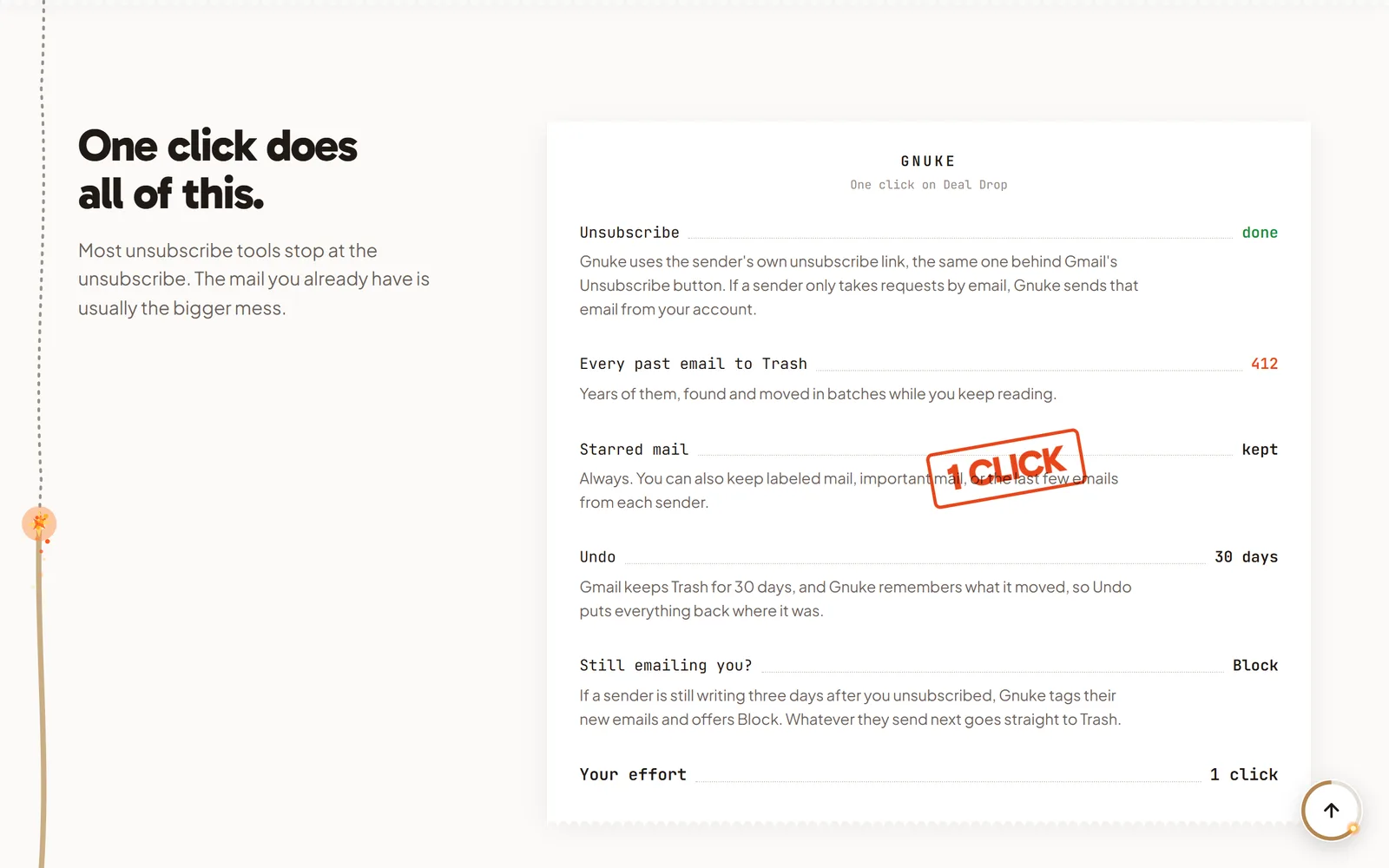
Gnuke is a  Chrome extension that puts a bomb button in Gmail. One click on a sender does the unsubscribe and the cleanup together:
- It unsubscribes you through the sender's own unsubscribe link, the same one behind Gmail's Unsubscribe button. If the sender only accepts requests by email, Gnuke sends that email from your account.
- It moves every past email from that sender to Trash.
- Starred and labeled mail stays put.
- Undo works for 30 days and puts everything back.
- If the sender is still emailing you after the unsubscribe, Gnuke offers Block, so whatever they send next is taken care of.
That's the order this article recommends anyway: unsubscribe first, block only if they ignore you, and clear the backlog while you're at it. Your email content stays on your device (how that works), and there's a phone app at app.getgnuke.com for cleaning up from your couch. Got a long list of senders? Clean up ranks them so you can do several at once. Plans are on the pricing section.
Quick answer, by situation#
| Situation | What to do |
|---|---|
| A store or newsletter you signed up for | What to doUnsubscribe. The sender stops at the source. |
| A sender still writing days after you unsubscribed | What to doBlock. Their new mail goes to Spam. |
| No unsubscribe link at all | What to doBlock. |
| Years of old mail from them in your inbox | What to doDelete it with a from: search, or let Gnuke move it to Trash. |
| A scam or phishing email | What to doReport it as spam or phishing rather than just blocking. |
Want to see how Gmail's own list stacks up against a one-click tool? We compared Gnuke and Gmail's Manage subscriptions side by side. And if one company is the problem, our guides for  Temu and
  Nextdoor cover their own email switches.
Frequently asked questions
What happens when you block someone in Gmail?
Every new email from that address goes to your Spam folder instead of your inbox. Mail you already have stays where it is, and blocking does not unsubscribe you from the sender's mailing list.
Does the sender know I blocked them in Gmail?
Google's help page for blocking doesn't describe any notice to the sender. Blocking is a rule in your own Gmail that files their new mail in Spam, so their messages are still delivered to your account, just not to your inbox.
How do I block a sender in Gmail on my iPhone?
Open the Gmail app, open a message from the sender, tap More (the three dots) next to Reply at the top right, then tap Block followed by the sender's name. The steps are the same on Android.
Where do I see the email addresses I've blocked?
On Gmail for the web, click Settings, then See all settings, then Filters and Blocked Addresses. To unblock someone, tick the box next to them and click Unblock selected addresses.
Should I block or unsubscribe from a newsletter?
Unsubscribe first. Google itself suggests unsubscribing from promotional emails and newsletters you don't want to block. Block is for senders who ignore the unsubscribe or who never offered one.
Does blocking a sender delete their old emails?
No. Blocking only changes where future mail goes. To clear what is already there, search for from:sender@example.com, select every match and delete them, or use a tool like Gnuke that moves a sender's past mail to Trash in one click.